
Evidence Locker can ingest a Slack workspace export — the export ZIP a workspace owner downloads from Slack — and turn it into a browsable, searchable set of channels, direct messages, threads and files. Every file shared in the workspace is downloaded from Slack, hashed and preserved alongside the messages.
The screenshots on this page use a fictional demo workspace. No real people or companies are shown.
Before you begin
- Have a case open — imports belong to a case and live under its Acquisitions area.
- Obtain the Slack export ZIP. The export contains the messages but not the shared files — only links to them. Evidence Locker downloads every file from Slack during processing, so start the import soon after the export is generated: Slack can revoke the download links.
- Check the case's time zone on the case's details screen. Slack stores every timestamp in UTC; Evidence Locker shows and exports message times in the case's zone, labelled with its abbreviation (PDT, EST).
- Optionally, know which custodian the workspace belongs to. Custodians can be picked or created from the import form.
Step 1 — Start an import
- Open your case and go to Acquisitions.
- Click Import Evidence.
- Click Next on the Slack Workspace Export card.
Step 2 — Workspace, custodian, ZIP and label
The import is a short stepper:
- Workspace — the workspace name as you want it shown (for example the company name) and optional notes.
- Custodian — pick one custodian, or create one on the spot. Optional.
- Data Source — select the export
.zip. - Label — a short required label (up to 200 characters). It names the acquisition in listings and names its exports.
- Review — confirm, including the time zone the acquisition will be displayed in, and start.
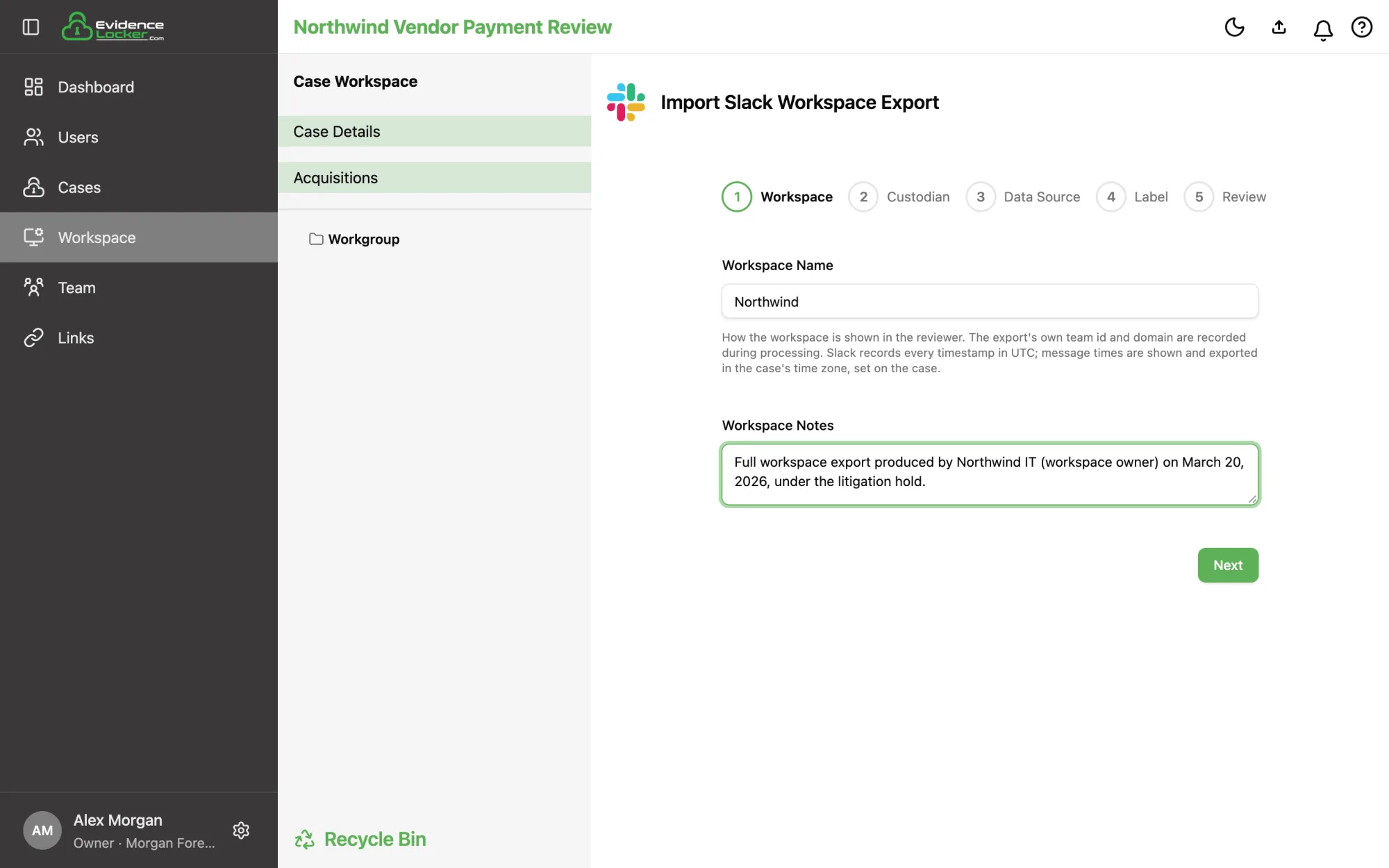 The Workspace step: workspace name and notes
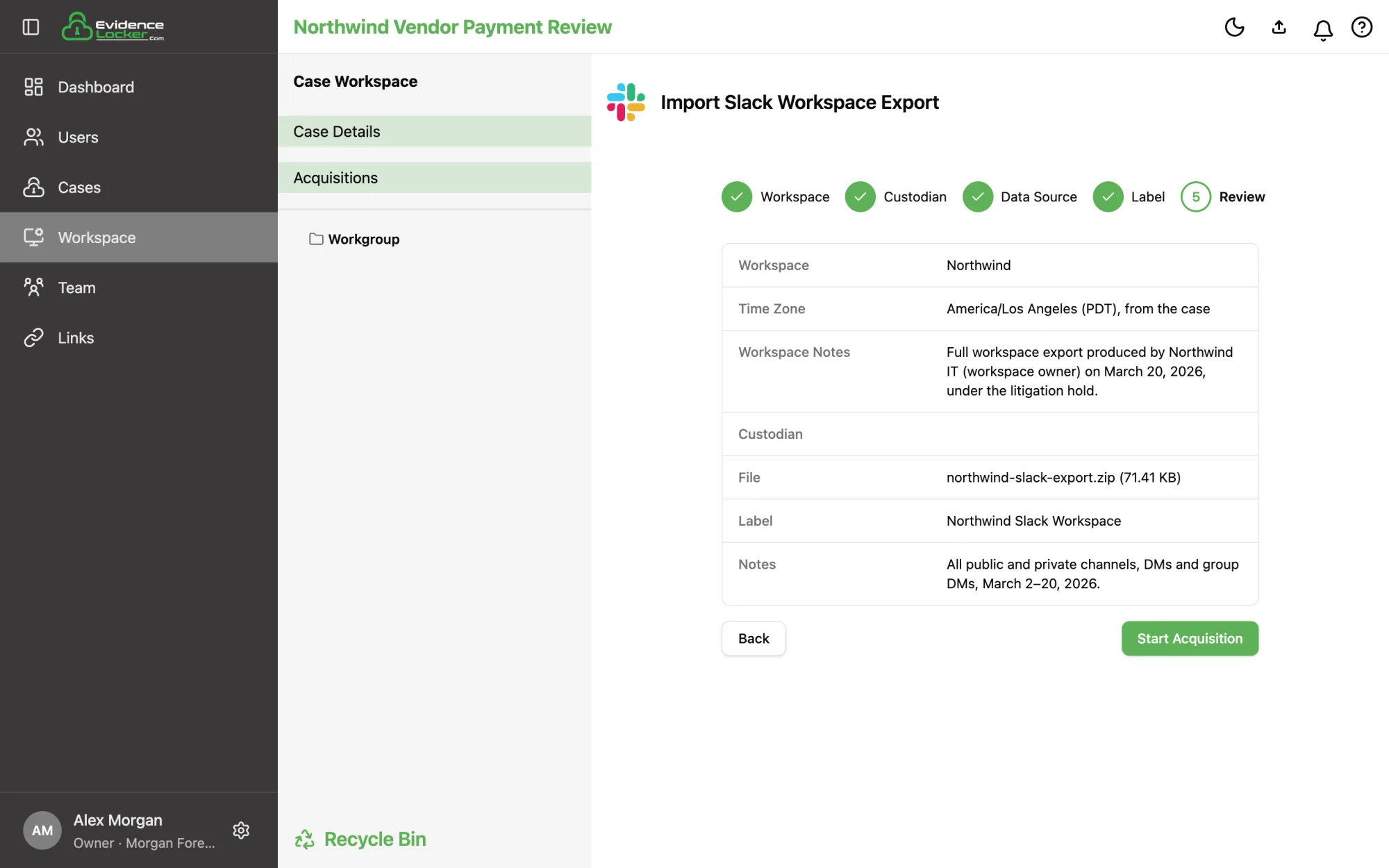 The Review step before starting the acquisition
You're taken straight back to the case's Acquisitions list while the ZIP uploads in the background (see Uploading Evidence). You can keep working while it uploads.
Step 3 — Watch processing live
The acquisition moves through Pending → Validating → Processing → Completed on the Acquisitions page, with a live progress bar. Processing has two phases:
- Messages — users, channels, private channels, group and direct messages, threads, reactions, edits, link previews, canvases and huddle records are read and stored. Slack's message markup (
@mentions,#channels, links) is resolved so everything is full-text searchable. - Files — every shared file is downloaded from Slack, hashed (MD5, SHA-1, SHA-256), converted for in-browser viewing where possible, and stored in encrypted evidence storage. A file that can't be fetched — deleted in Slack, hidden by the workspace's plan limits, or hosted elsewhere such as Google Drive — is recorded as such and never blocks the acquisition.
Large workspaces can take a while, because the file phase is bounded by how fast Slack serves the files. It's safe to leave the page: processing continues on the server, and we email you when it starts and when the acquisition is ready to review.
When processing finishes, the acquisition shows its totals (users, conversations, messages, files) and any validation notes — for example a file whose checksum didn't match, or files Slack refused to serve. These are recorded, not hidden: the export is evidence, and Evidence Locker preserves what was there.
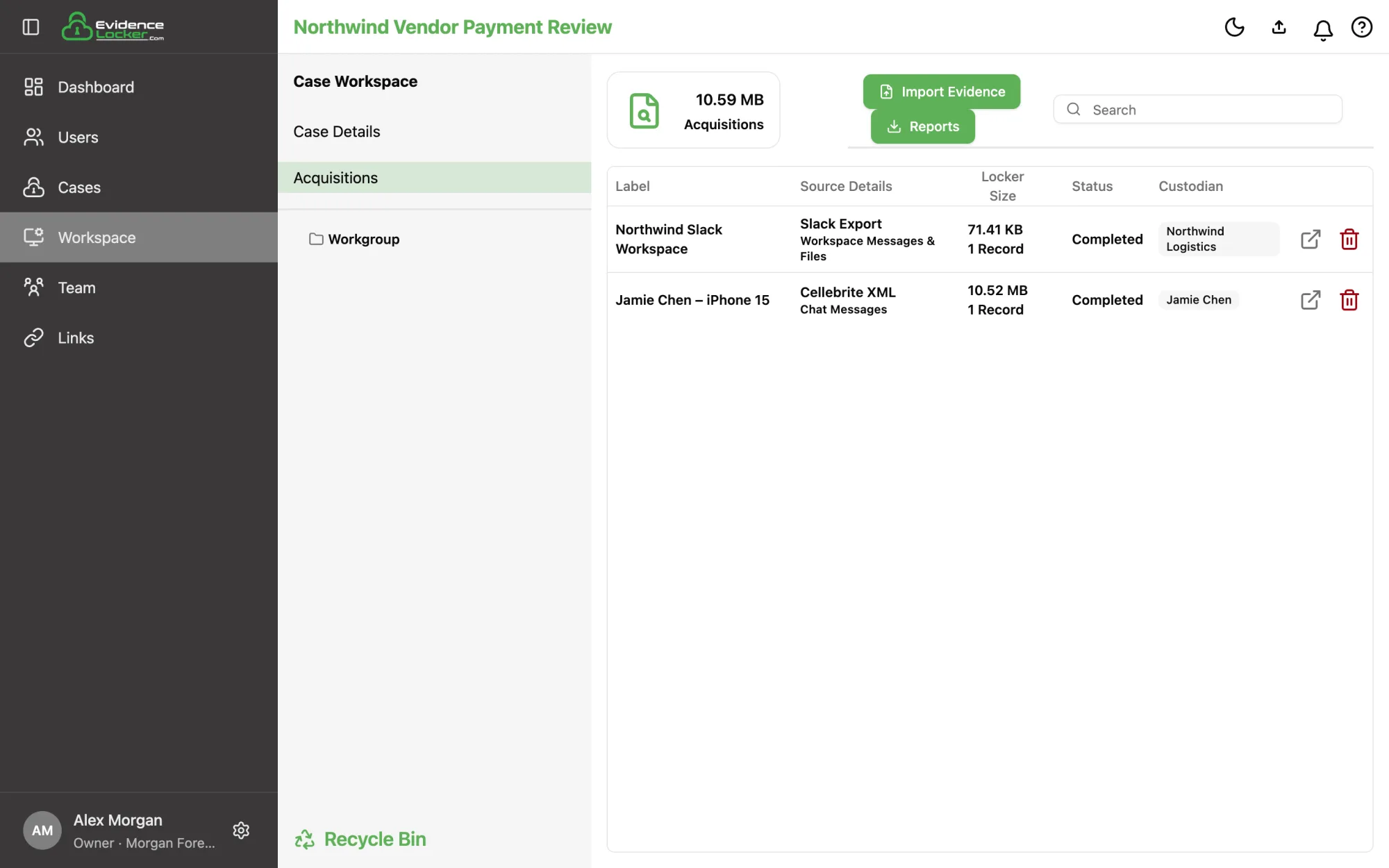 The completed Slack acquisition in the Acquisitions list
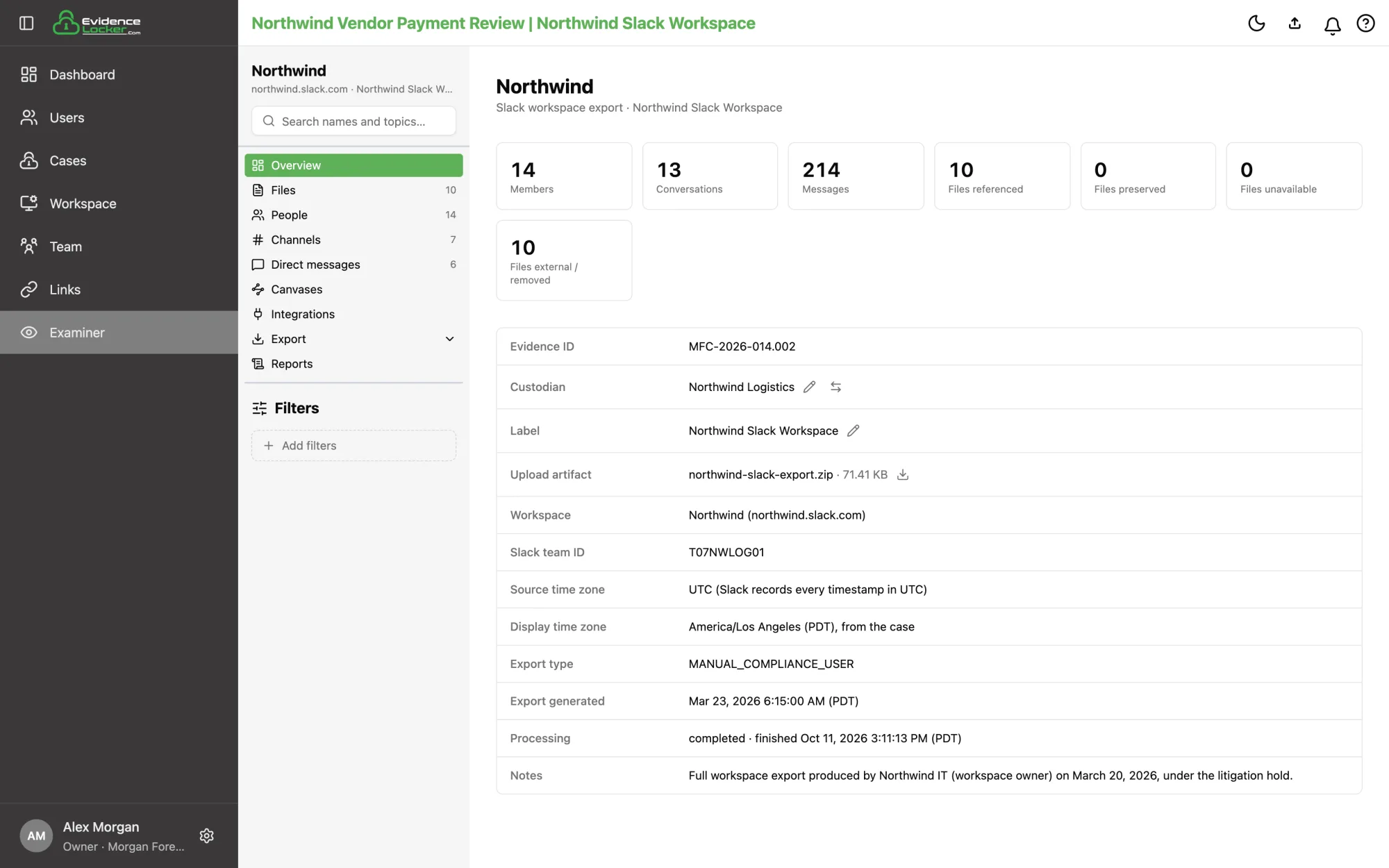 The reviewer's Overview: totals and acquisition details
Step 4 — Review the workspace
Click the examine icon on a completed acquisition to open the reviewer, which is laid out like the Slack app. The left rail holds the workspace name and search, links to Overview, Files, People, Channels, Direct messages, Canvases and Integrations, the Export menu, Reports, and the Filters box.
Channels and direct messages
Channels and Direct messages each open a table of that group with name, topic, members, message counts, and first and last message times. Private channels show a lock and archived ones an archive icon. Click a column header to sort, and double-click a row to open the conversation.
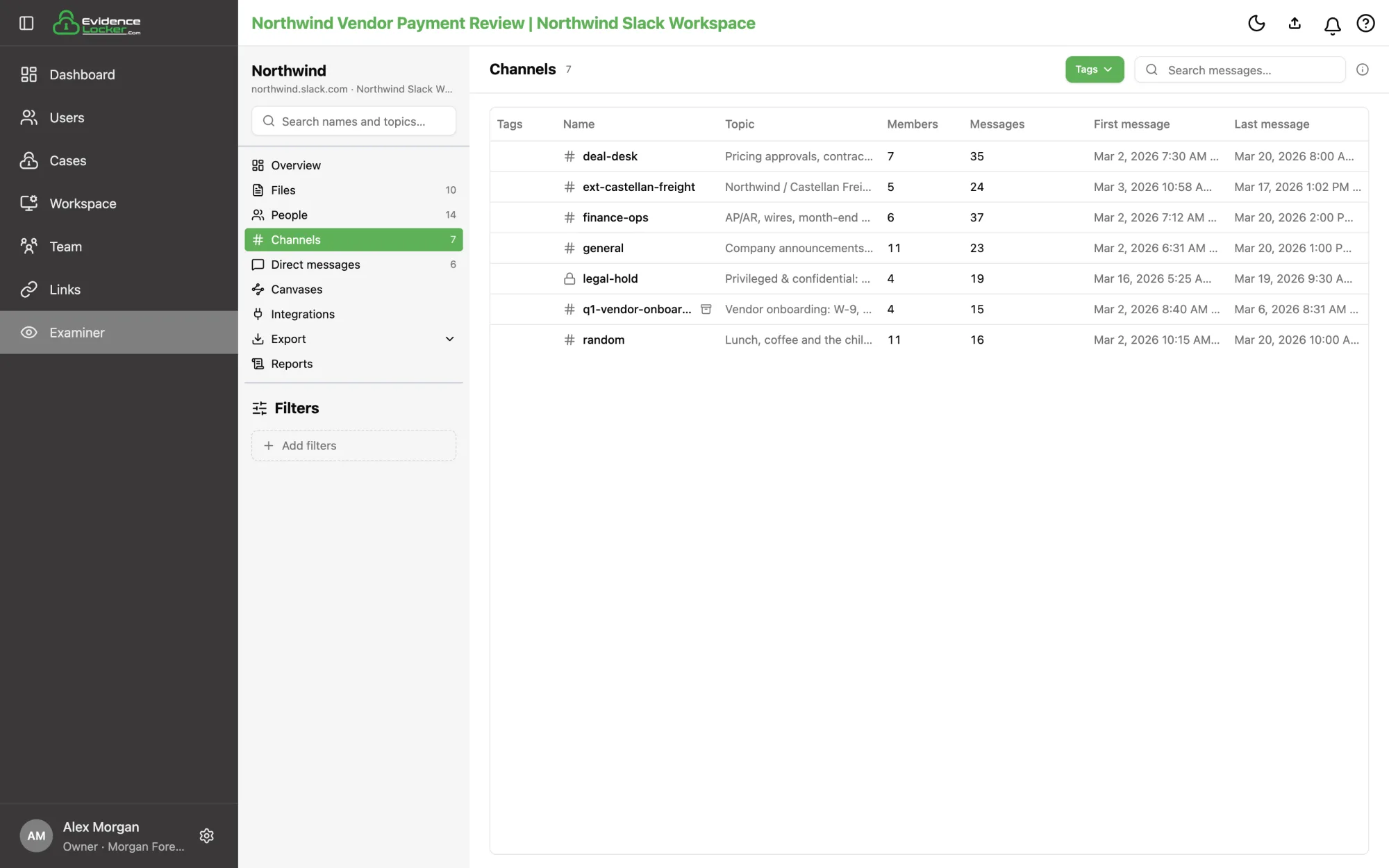 The Channels table
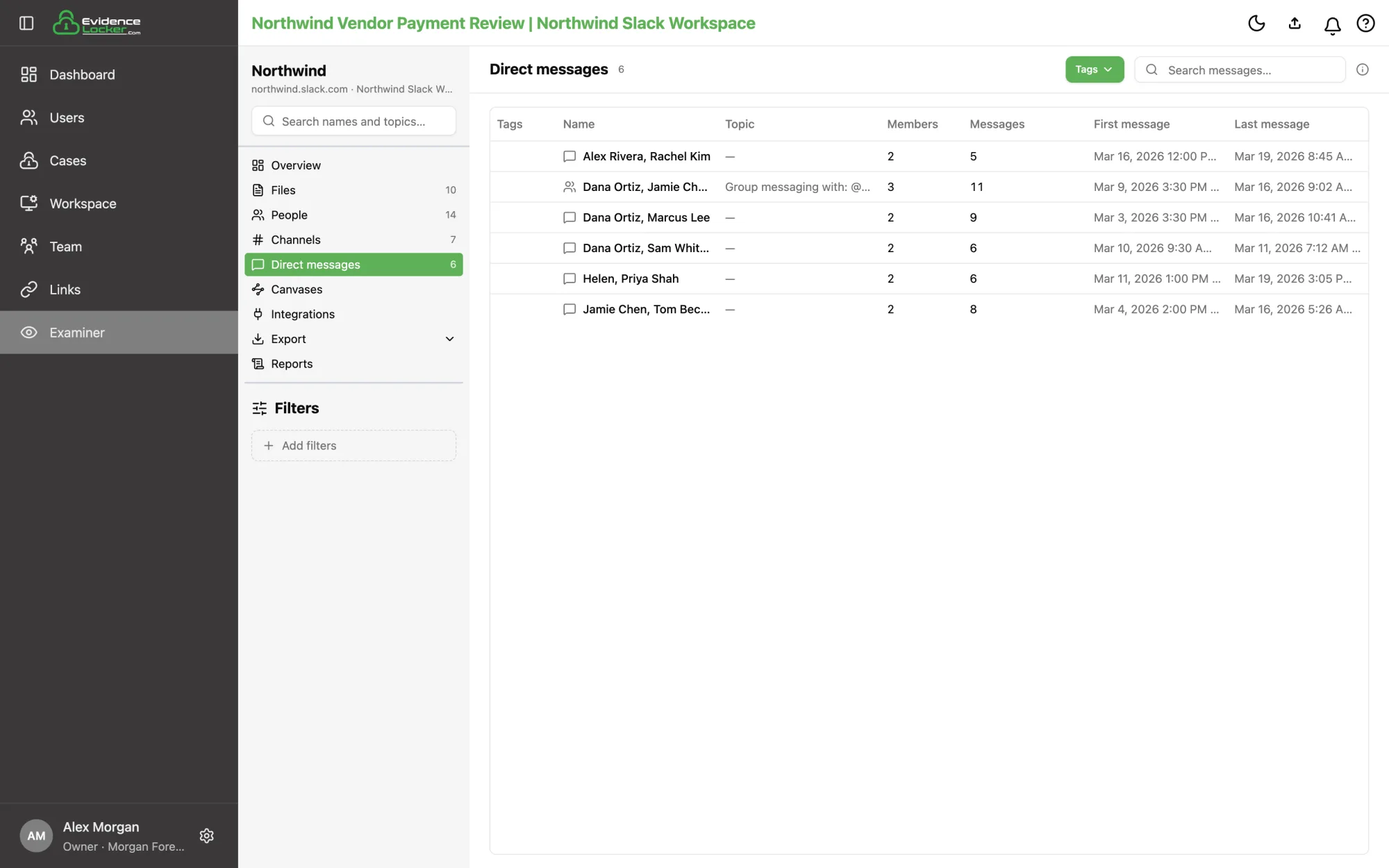 Direct and group messages
The Search messages box at the top right searches the conversations' message text. The table keeps only the conversations with a match, and the Messages column shows the matches against the total — with +N in threads for matches inside thread replies.
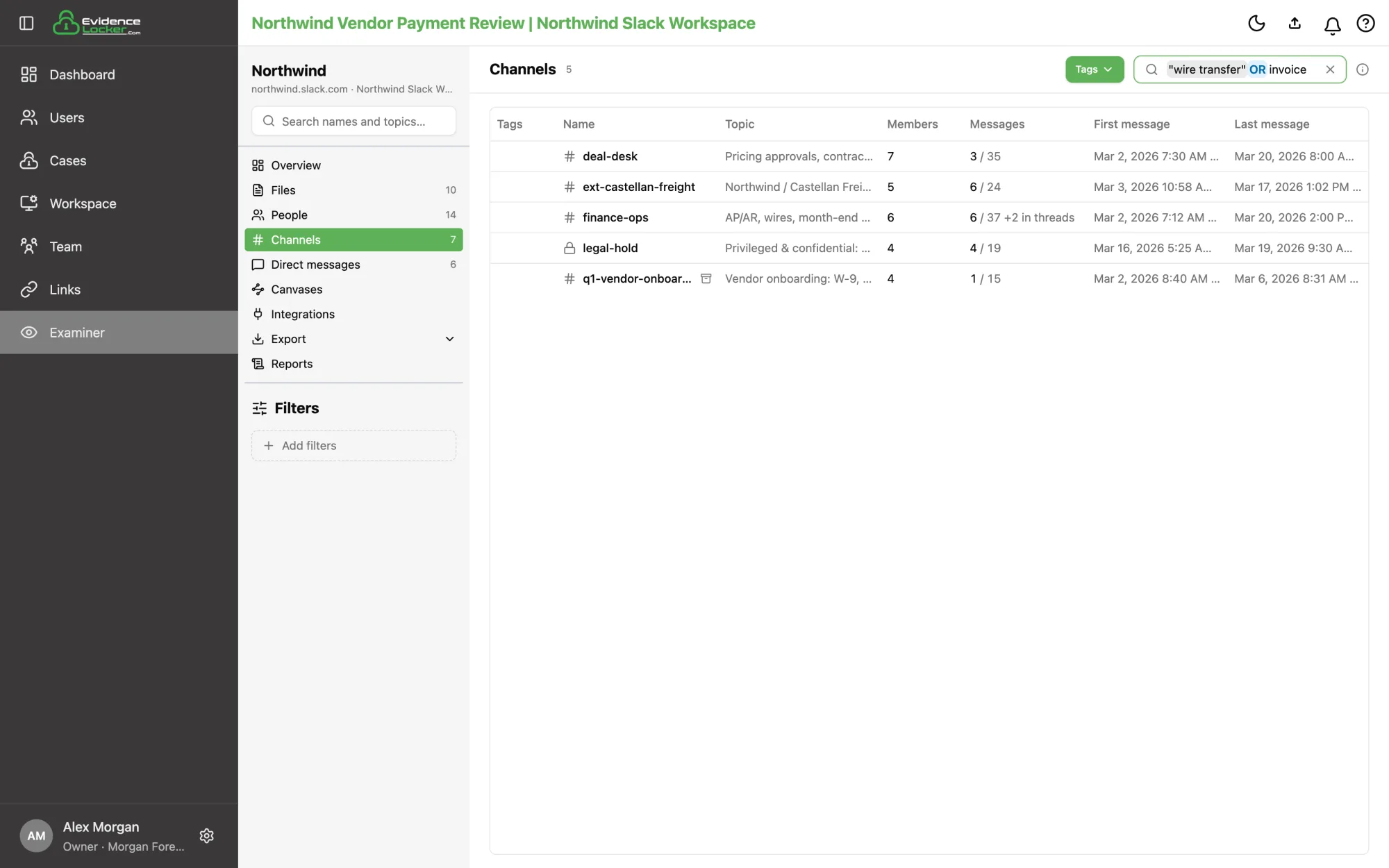 Searching channels for "wire transfer" OR invoice
Conversations and threads
A conversation reads like a transcript, oldest message first, with day dividers, edits, reactions, @mentions, link previews and file cards as they appeared in Slack. Times are shown in the case's time zone. Toggle Show joins & changes to hide channel housekeeping, and Inline thread replies to see replies in the timeline.
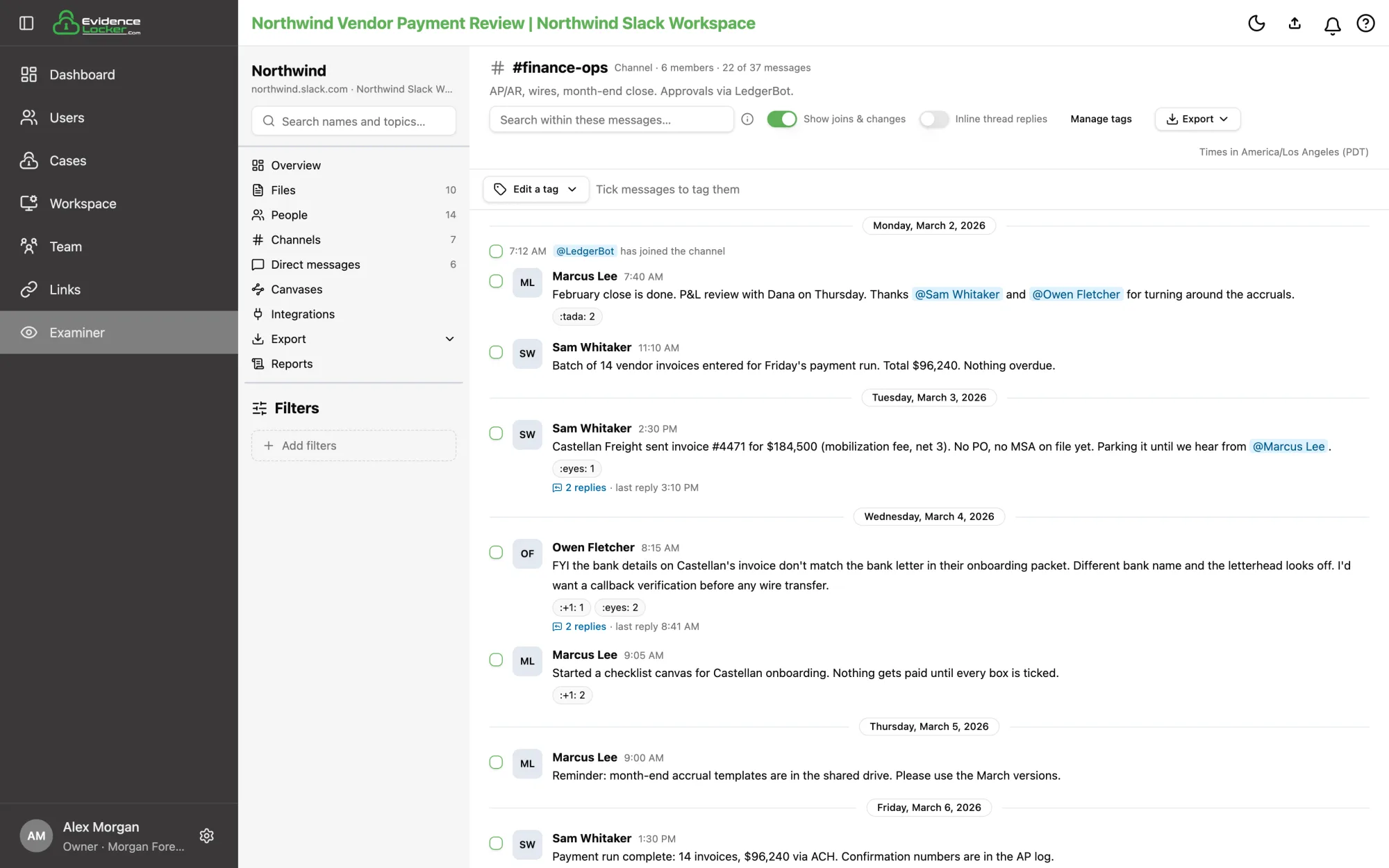 A channel conversation in the reviewer
N replies opens the thread on the right.
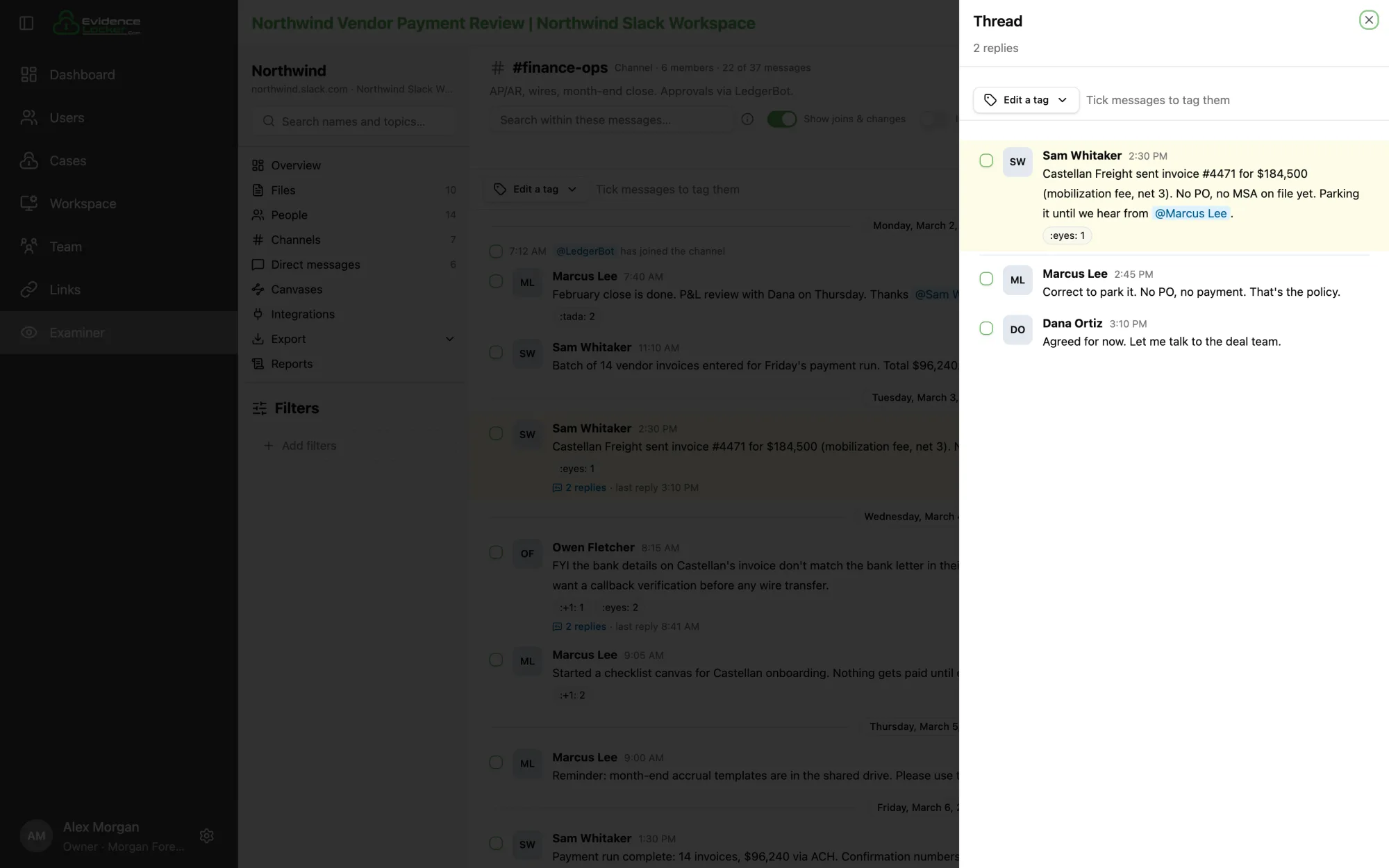 A thread open beside the conversation
Files
Files shows every file the workspace shared, with tabs by type and a file-name search. Preserved files open in the viewer. Files Slack couldn't serve — deleted, hidden by plan limits, or hosted elsewhere such as Google Drive — are listed with the reason.
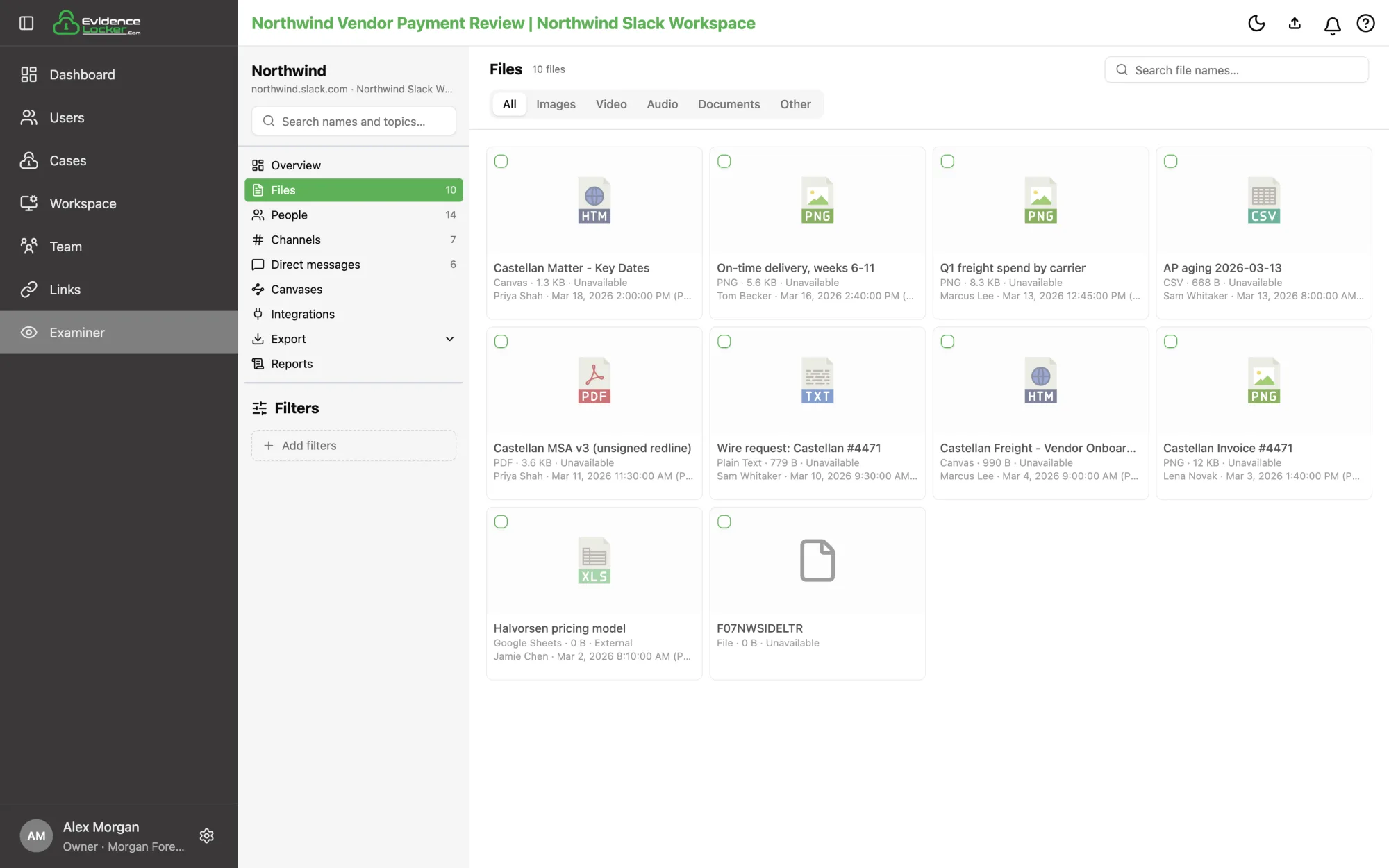 The Files page
People, canvases and integrations
People is the member directory, with title, email, phone, Slack ID and flags such as admin, guest or deactivated. Canvases lists the workspace's canvases, searchable by title and text, and Integrations shows the app-install activity log.
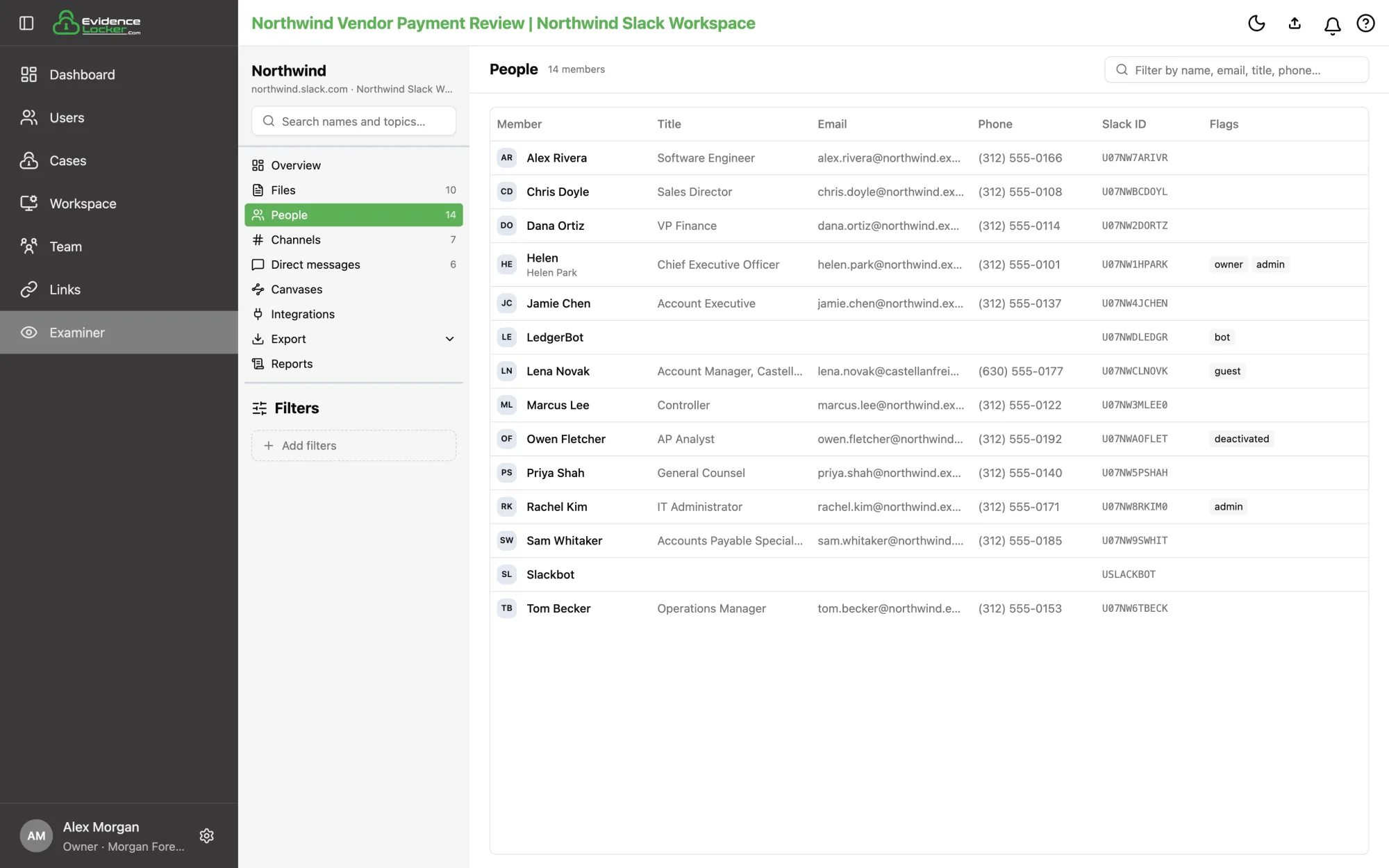 The People directory
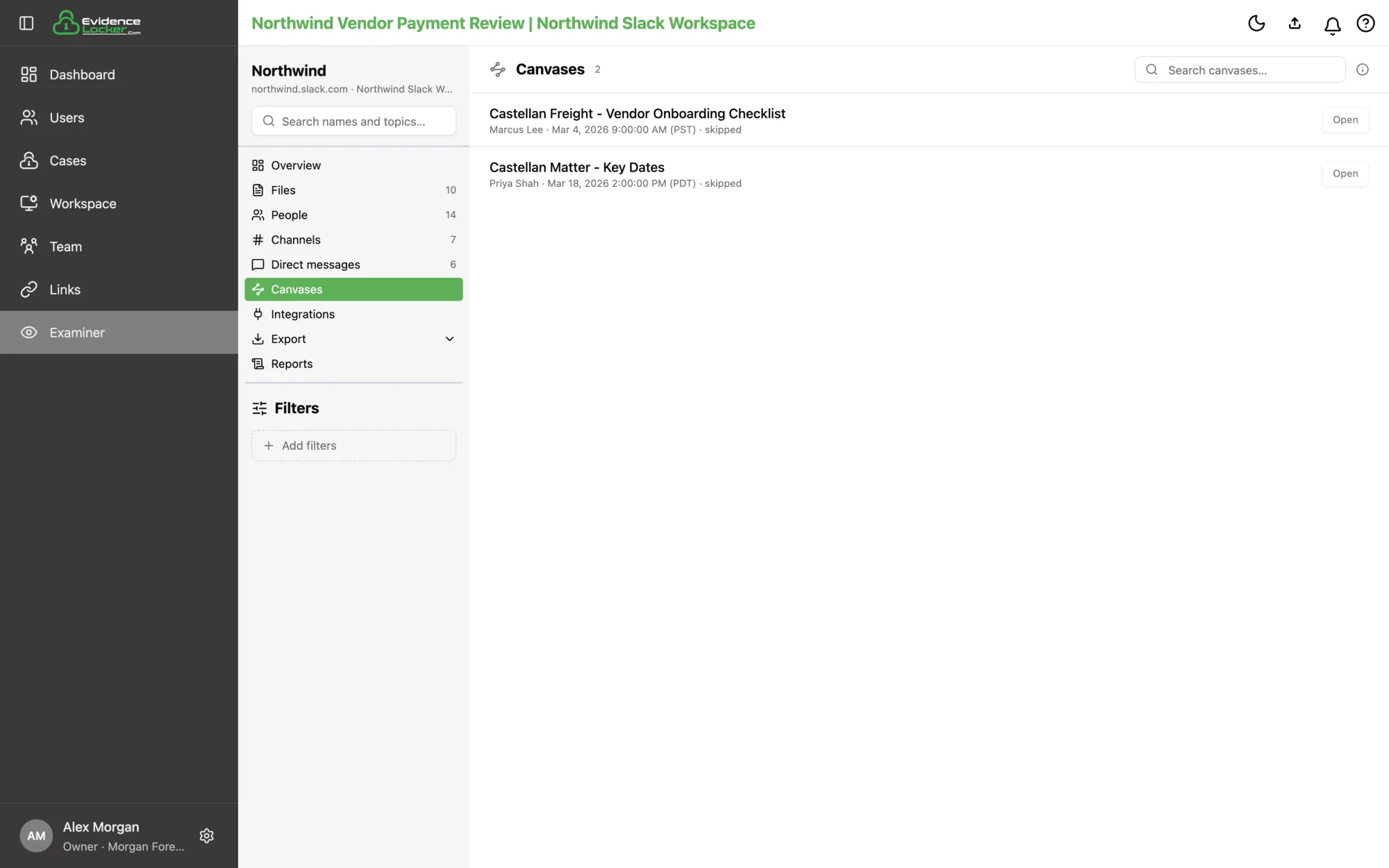 The Canvases list
Search and filters
The Filters box at the bottom of the left rail narrows every view at once — conversations, files and exports. Click Add filters and choose:
- Tags — only what carries the chosen tags.
- People — only the conversations a person was in.
- Keywords — only the messages whose text or file names match a keyword query.
- Date range — a first and last day, in the case's time zone.
Changes apply when you click Done, and each applied filter shows as a chip in the rail.
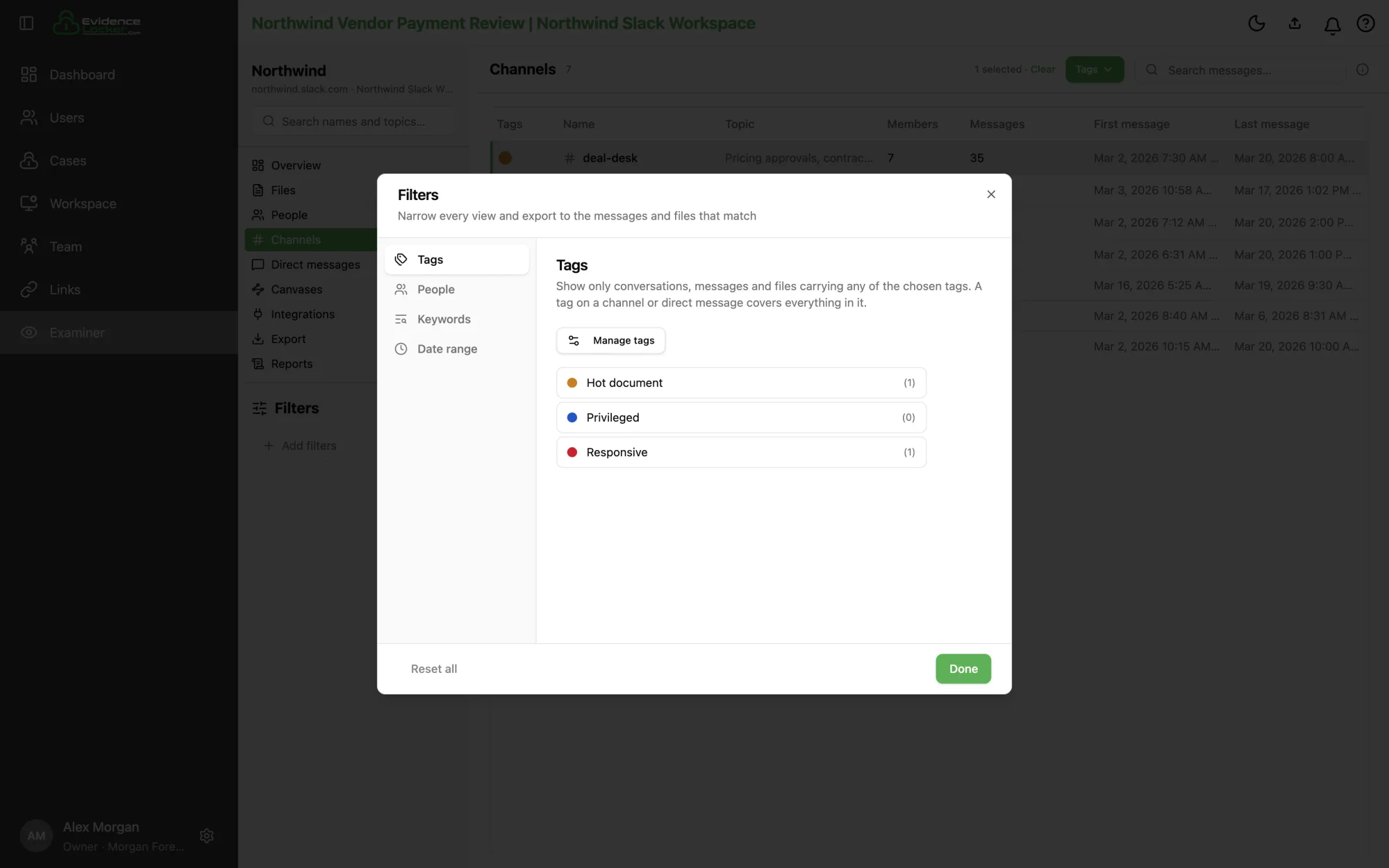 The Filters dialog with the Tags section open
Keyword queries and the message search boxes share one search language:
| You type | It finds |
|---|---|
invoice overdue | messages containing both words, in any order |
invoice OR receipt | messages containing either word |
invoice NOT draft | messages with invoice but not draft |
"wire transfer" | the exact phrase |
pay* | pay, payment, payable… |
(invoice AND overdue) OR refund | parentheses group terms |
Words match exactly, ignoring case: invoice doesn't find invoices — use invoice* for that.
Tagging
Open Manage tags in a conversation's header to create tags with a name and color. Tags are applied to messages, and a message's files carry its tags.
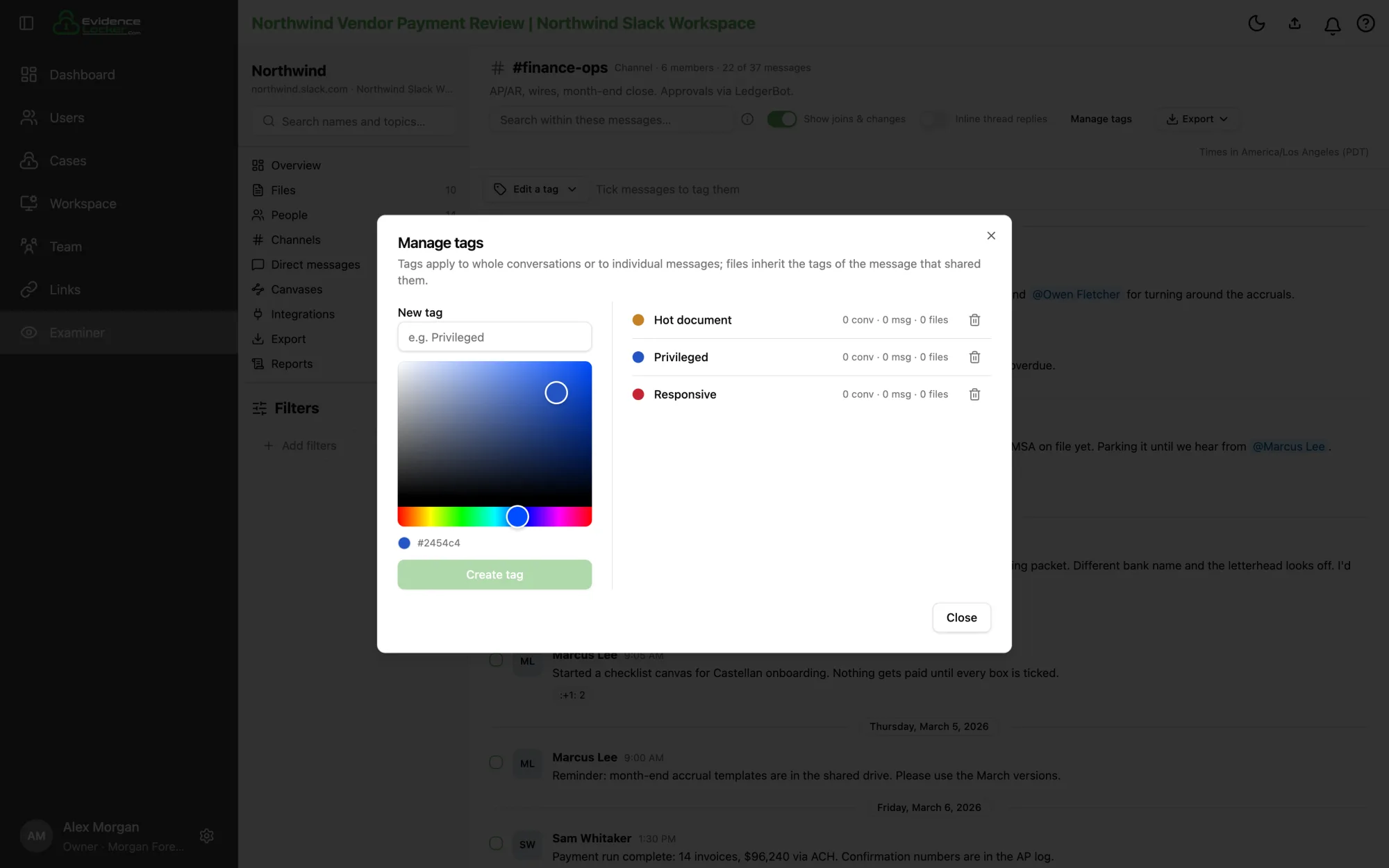 Creating tags in Manage tags
Tag individual messages — tick the messages' checkboxes and use Apply tag or Remove tag in the bar above the timeline. A thread reply is its own message, so you can tag the one reply that matters.
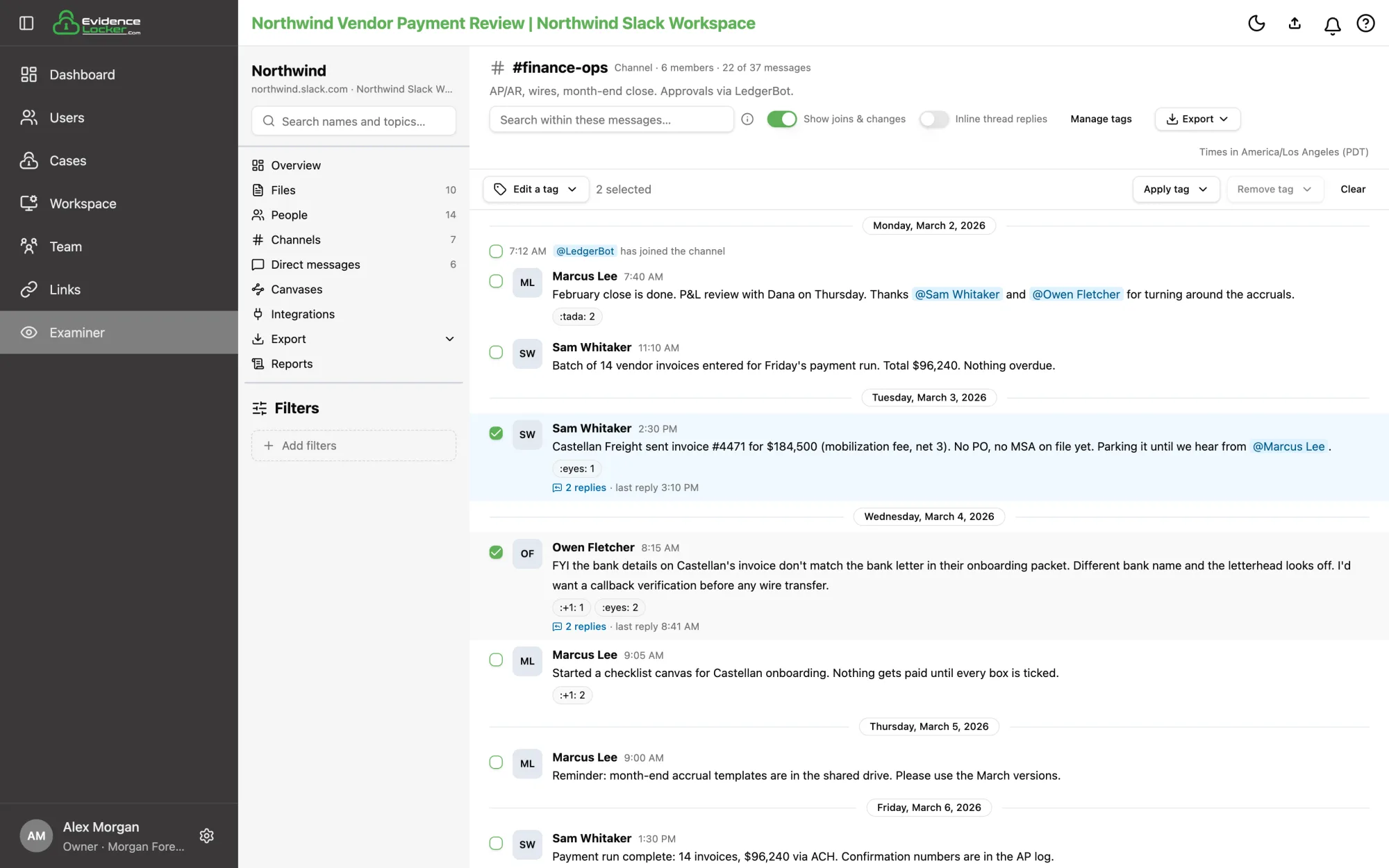 Two messages selected for tagging
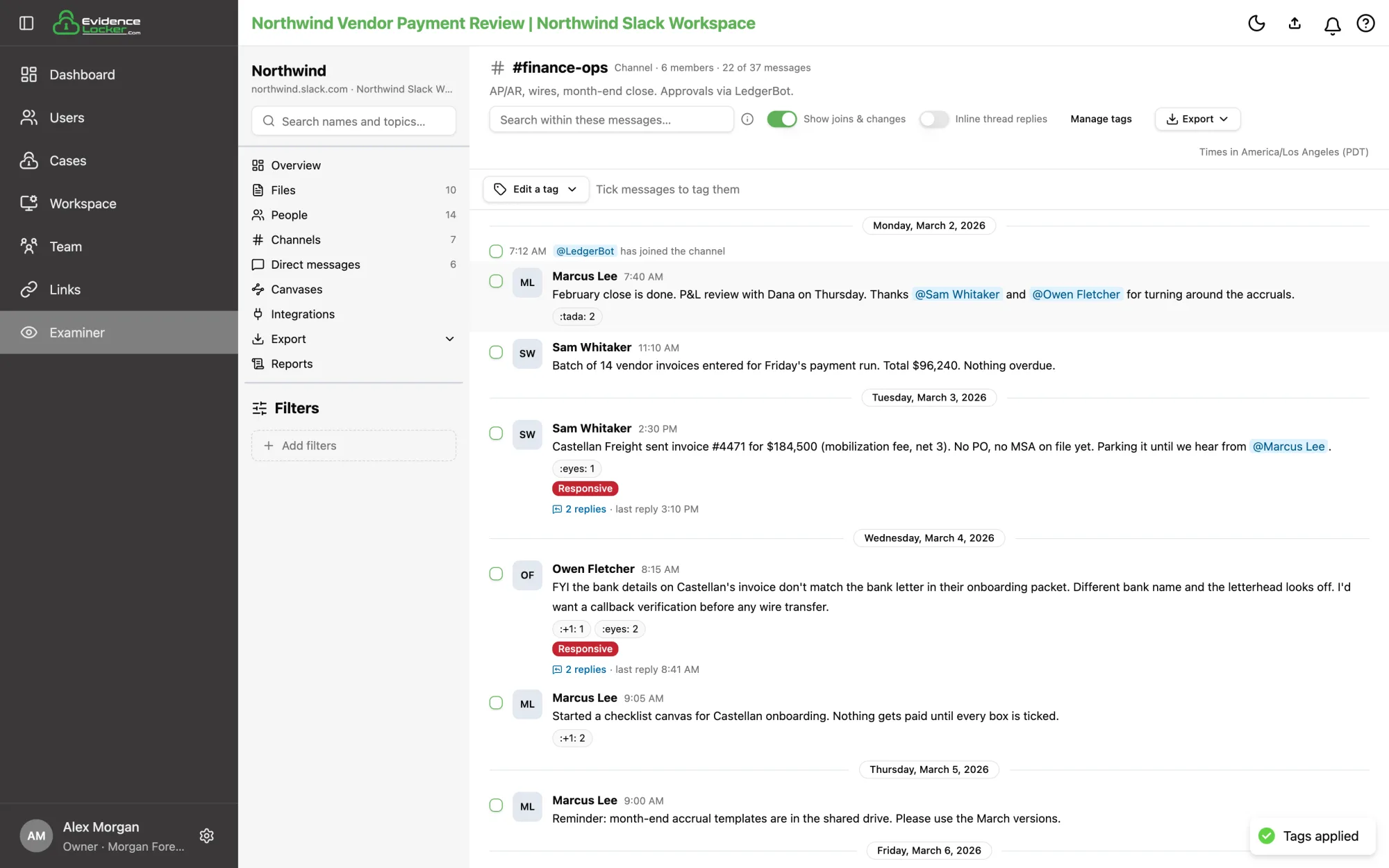 The tagged messages, with their tag badges
Tag conversations — select rows in the Channels or Direct messages table and use the Tags button. With keywords or a date range on, only the matching messages are tagged. In the table, a full circle means every message carries the tag and a half circle means only some do.
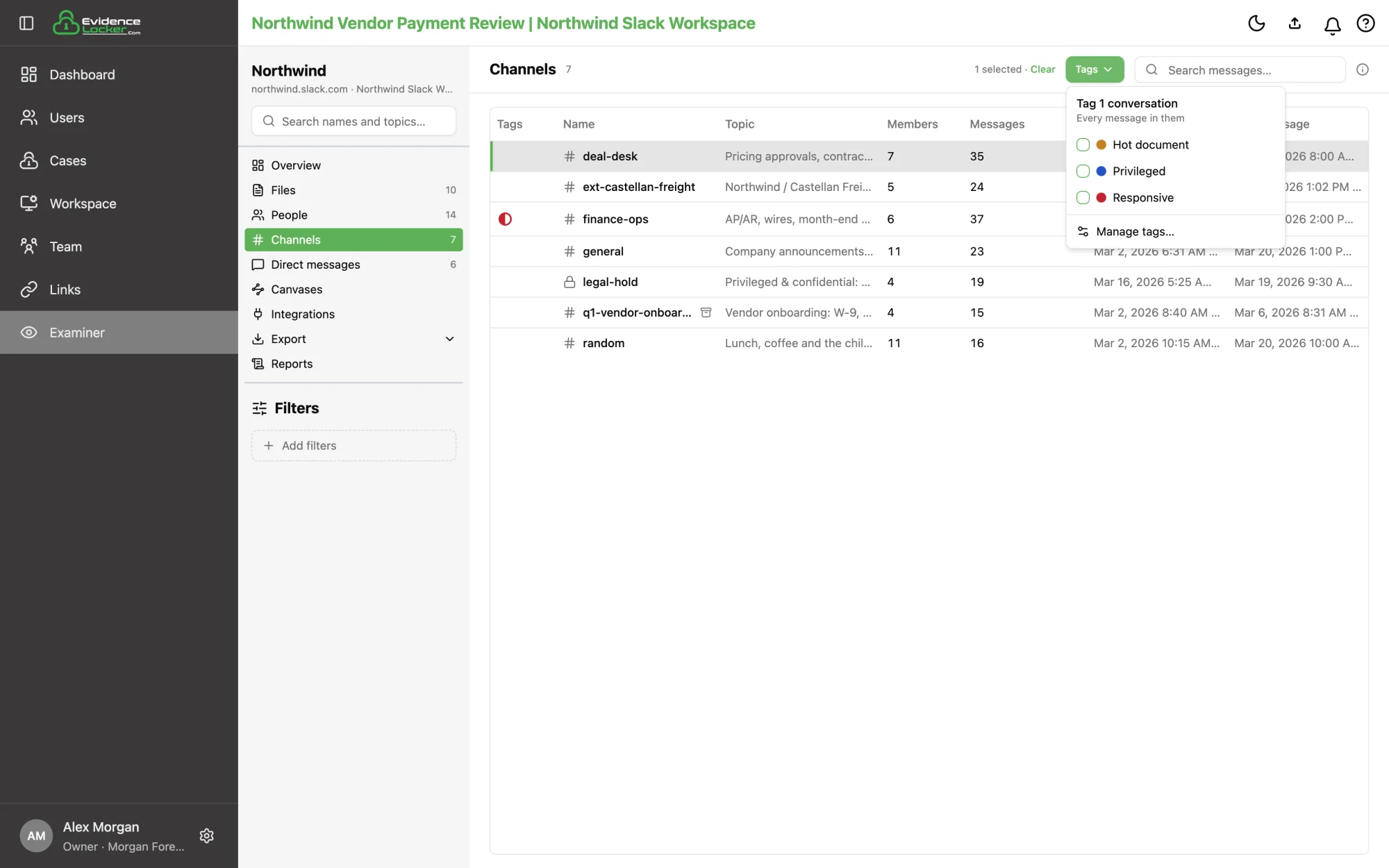 Tagging a selected channel from the Tags menu
Tag files — tick files on the Files page and use Apply tags.
Exporting
Export in the left rail exports the whole workspace; Export in a conversation header exports only that conversation. Both honor the applied filters, and offer:
- RSMF — for loading into a review platform, split into one file per day and one file per thread, with shared files attached.
- PDF — PDFs that read like Slack, by chat, by day, or by exact criteria (only the messages your tags, keywords or search select).
- Reports (Excel) — files not downloaded, URL references, and the validation report.
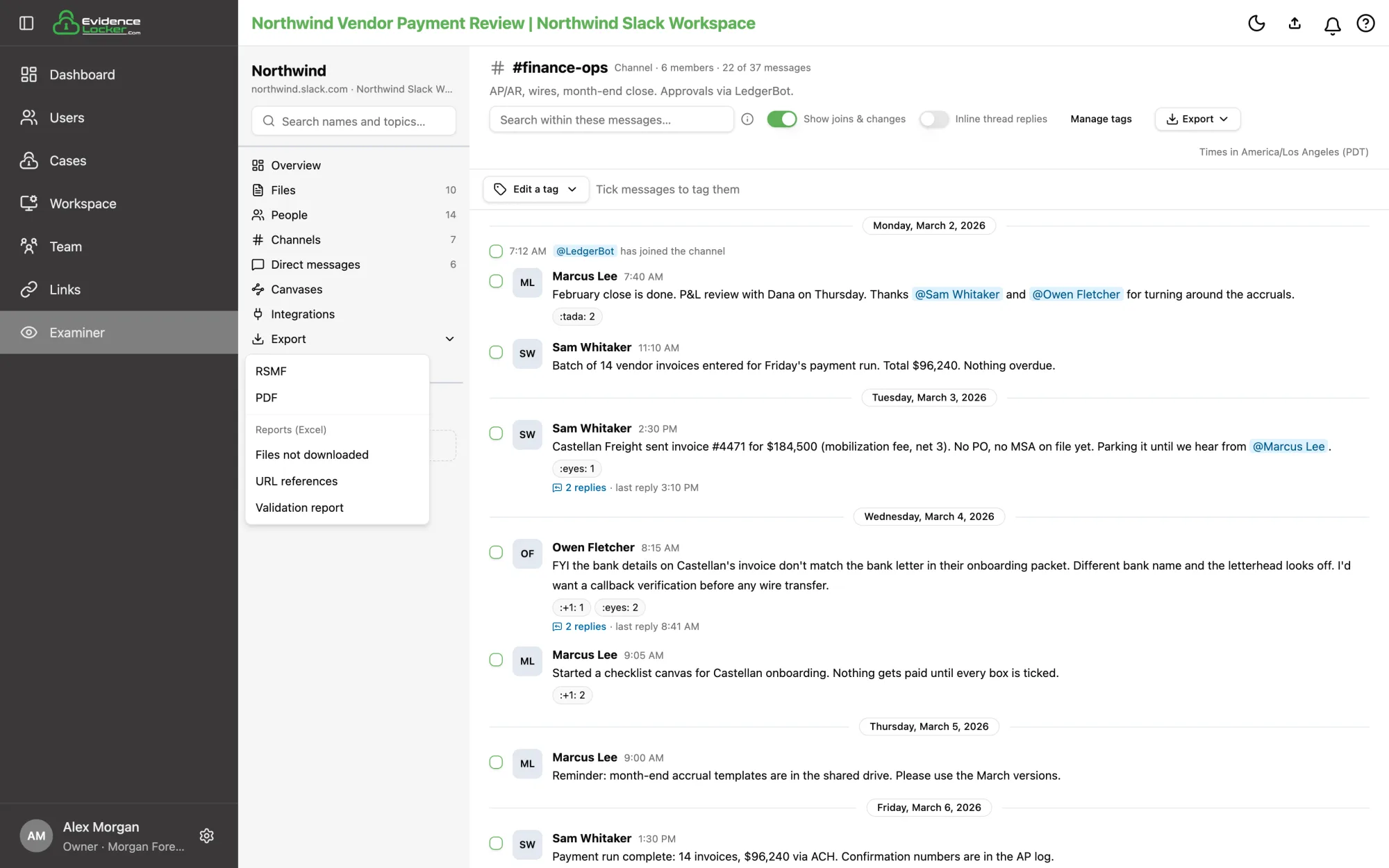 The Export menu
Exports are prepared on the server and we email you when they're ready; they're listed on the acquisition's Reports page.
Keyboard shortcuts
Click a message or file first so the list has keyboard focus. On Windows and Linux, use Ctrl where these say ⌘.
| Keys | What they do | Where |
|---|---|---|
| Click, ⌘ + click, Shift + click | Select one item, add or remove one, or select a range | Timeline, thread panel, Files |
| ↑ ↓ | Move the selection to the previous or next message or file | Timeline, thread panel, Files |
| ← → | Move across a row of files | Files |
| Shift + arrow | Extend the selection | Timeline, thread panel, Files |
| ⌘ + arrow | Move the highlight without selecting | Timeline, thread panel, Files |
| Space | Add or remove the highlighted item | Timeline, thread panel, Files |
| Enter | Open the file, or a message's first file | Timeline, thread panel, Files |
| ⌘ A | Select everything loaded so far | Timeline, thread panel, Files, tables |
| Esc | Clear the selection — in the thread panel, also close it | Timeline, thread panel, Files, tables |
| Enter / Shift Enter | Next or previous search match | Search within these messages box |
| ← → | Previous or next file | Viewer |
| 1 – 9 | Apply or remove one of the first nine tags | Viewer |
| I | Show or hide file details | Viewer |
| ⌘ = / - / 0 | Zoom in, out, or reset | Viewer (PDFs and images) |
While a tag is picked in Edit a tag, clicks and Space tick messages one at a time and ⌘A and Esc are off. See Keyboard Shortcuts for the full list, including the shortcuts that jump between pages.
Related
- Cellebrite Phone Analysis — the same review tools for phone chats
- Uploading Evidence — how the background upload works
- Creating and Managing Cases — where imports live