
Evidence Locker can ingest a phone report exported from Cellebrite — the report plus its associated media, packaged in a ZIP — and turn it into a searchable set of chats, messages, and attachments. The platform parses the device and conversation data, converts attachments for clean previewing, and shows you progress live while it works.
The screenshots on this page use a fictional demo case. No real people or devices are shown.
Before you begin
- Have a case open — imports belong to a case and live under its Acquisitions area.
- Prepare your Cellebrite export as a single
.zipcontaining the report and its associated files. (In Cellebrite tools, export the report in XML format along with its media.) - Optionally, know which custodian owns the device. You can pick an existing custodian — or create one on the spot — during the import, or leave it unset.
Step 1 — Start an import
- Open your case and go to Acquisitions.
- Click Import Evidence.
- Click Next on the Cellebrite Phone Analysis card.
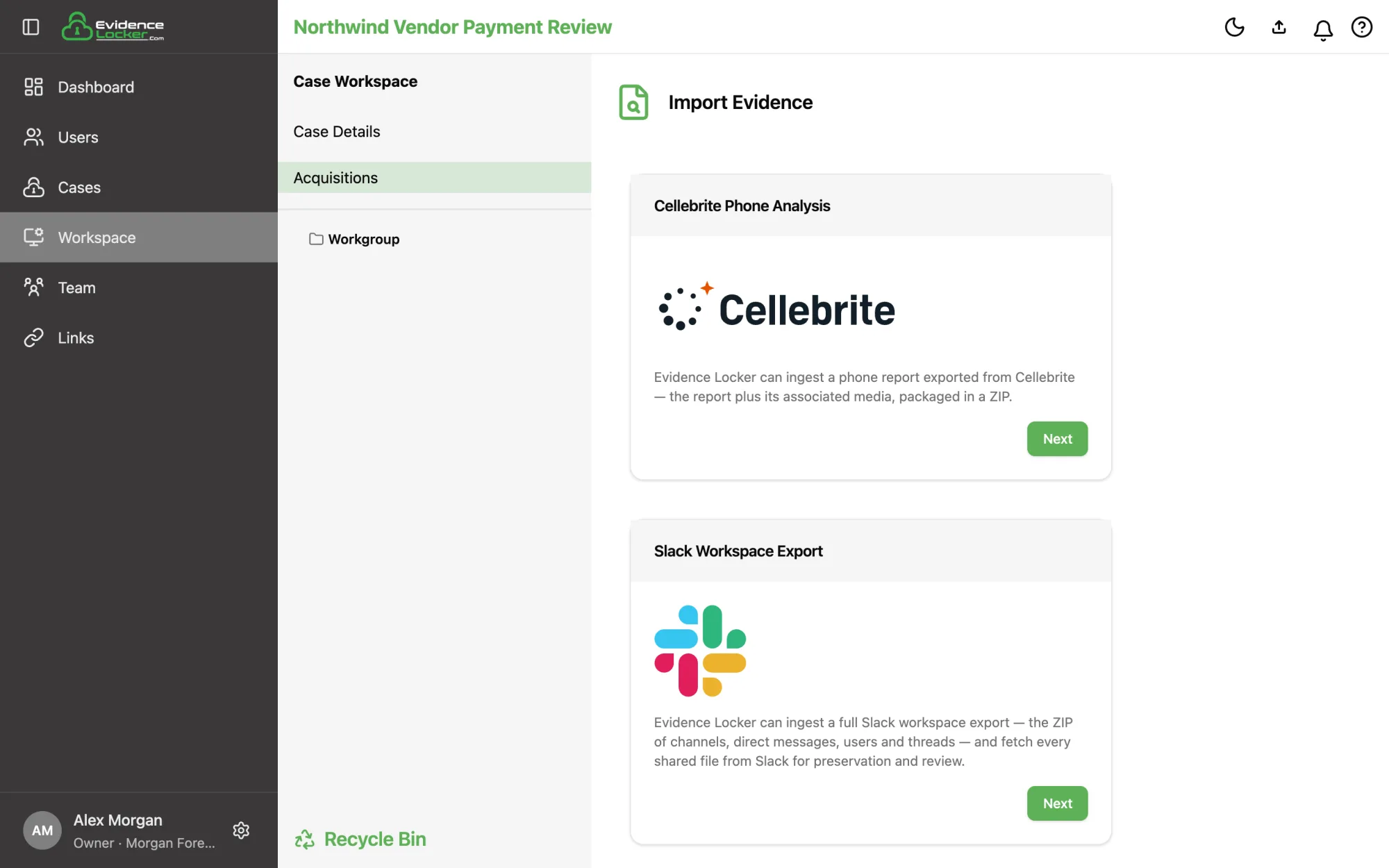 Choose Cellebrite Phone Analysis on the Import Evidence page
Step 2 — Walk through the import steps
The import is a short stepper: Phone Information, Custodian, Data Source, Label and Review.
Phone Information — the device's make and model, and optionally the phone owner's name and email. The owner is used to identify the owner's messages, which appear on the right of each conversation, and is independent of the custodian.
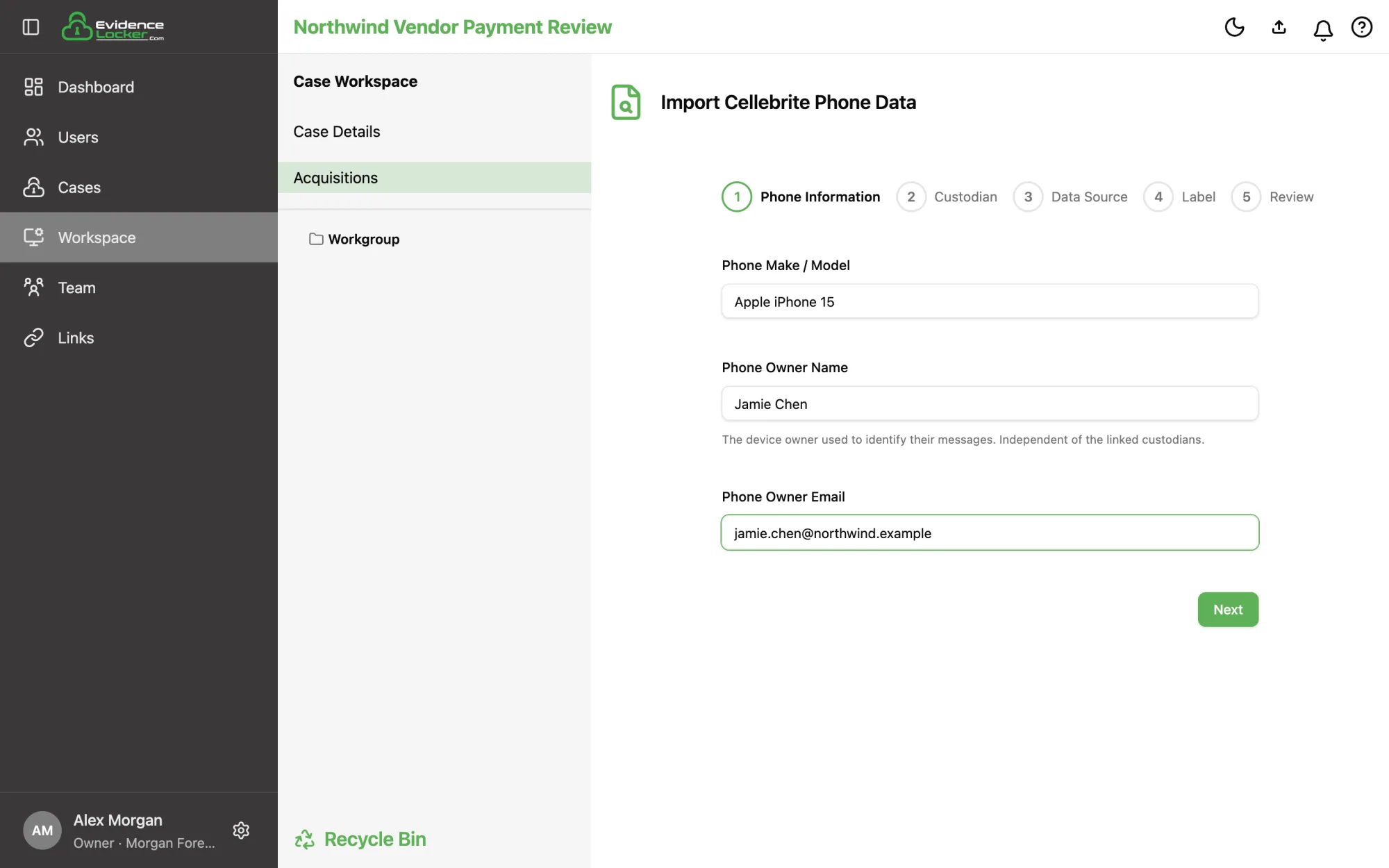 Phone Information: make and model, owner name and email
Custodian — search the case's custodians by name, company, email, or phone and pick one, or leave it blank. No match? Choose Create to add a custodian inline (a name or a company is required).
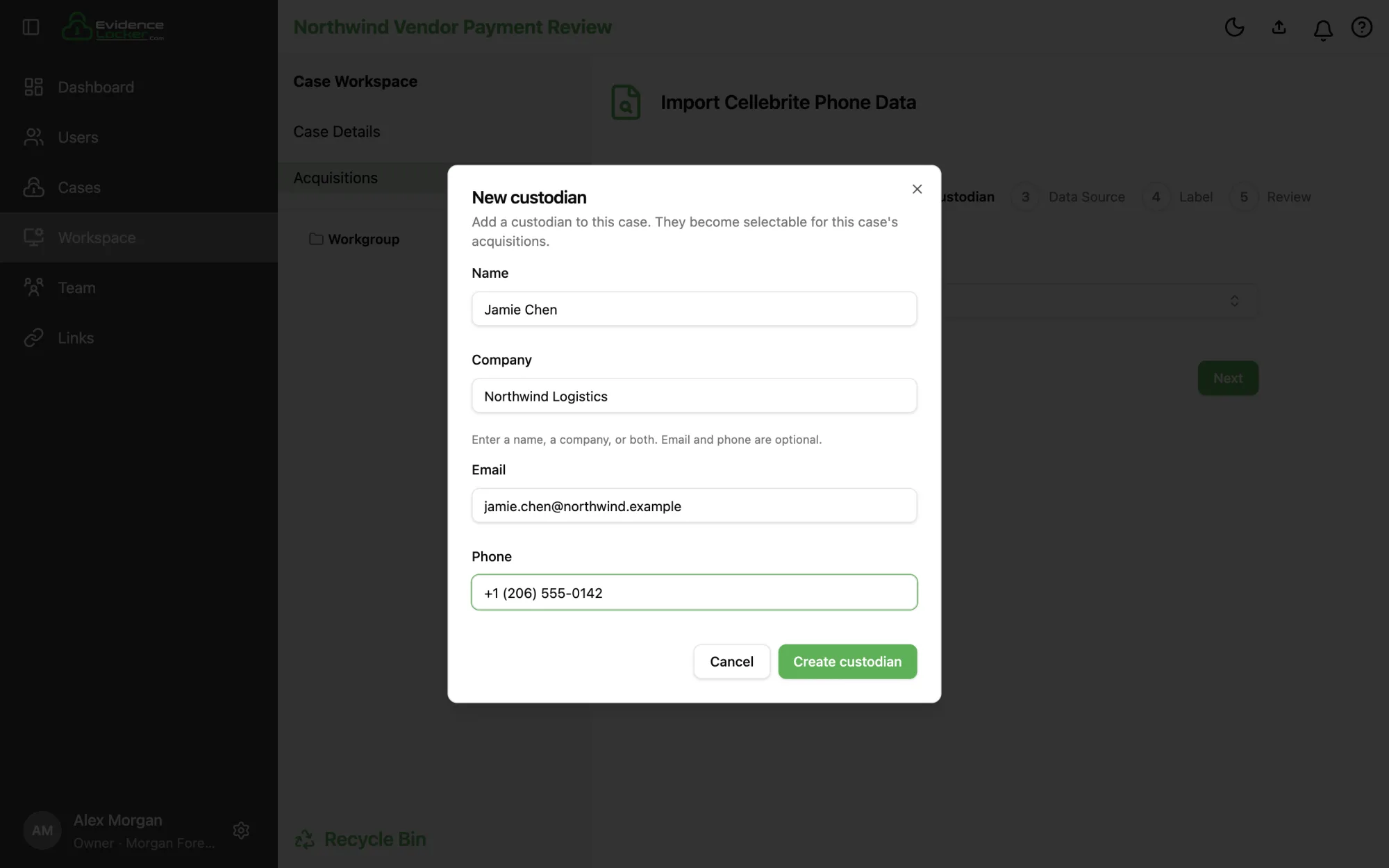 Creating a custodian from the import
Data Source — drop the Cellebrite .zip onto the box, or click it to choose the file.
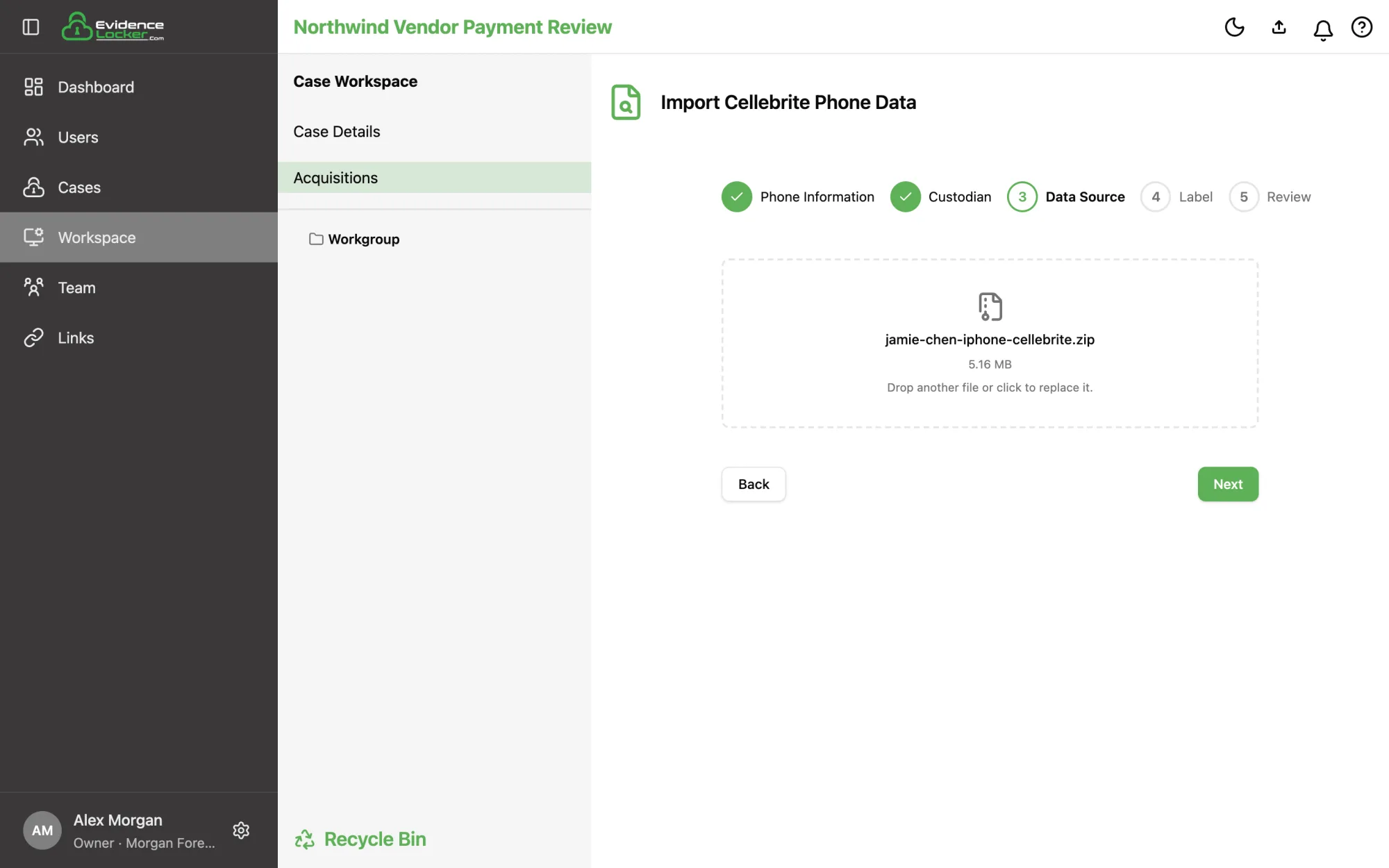 The selected Cellebrite ZIP on the Data Source step
Label — a short, required name for the import (up to 200 characters). It names the acquisition in listings and names its exports. You can also add Notes.
Review — check everything, then click Start Acquisition.
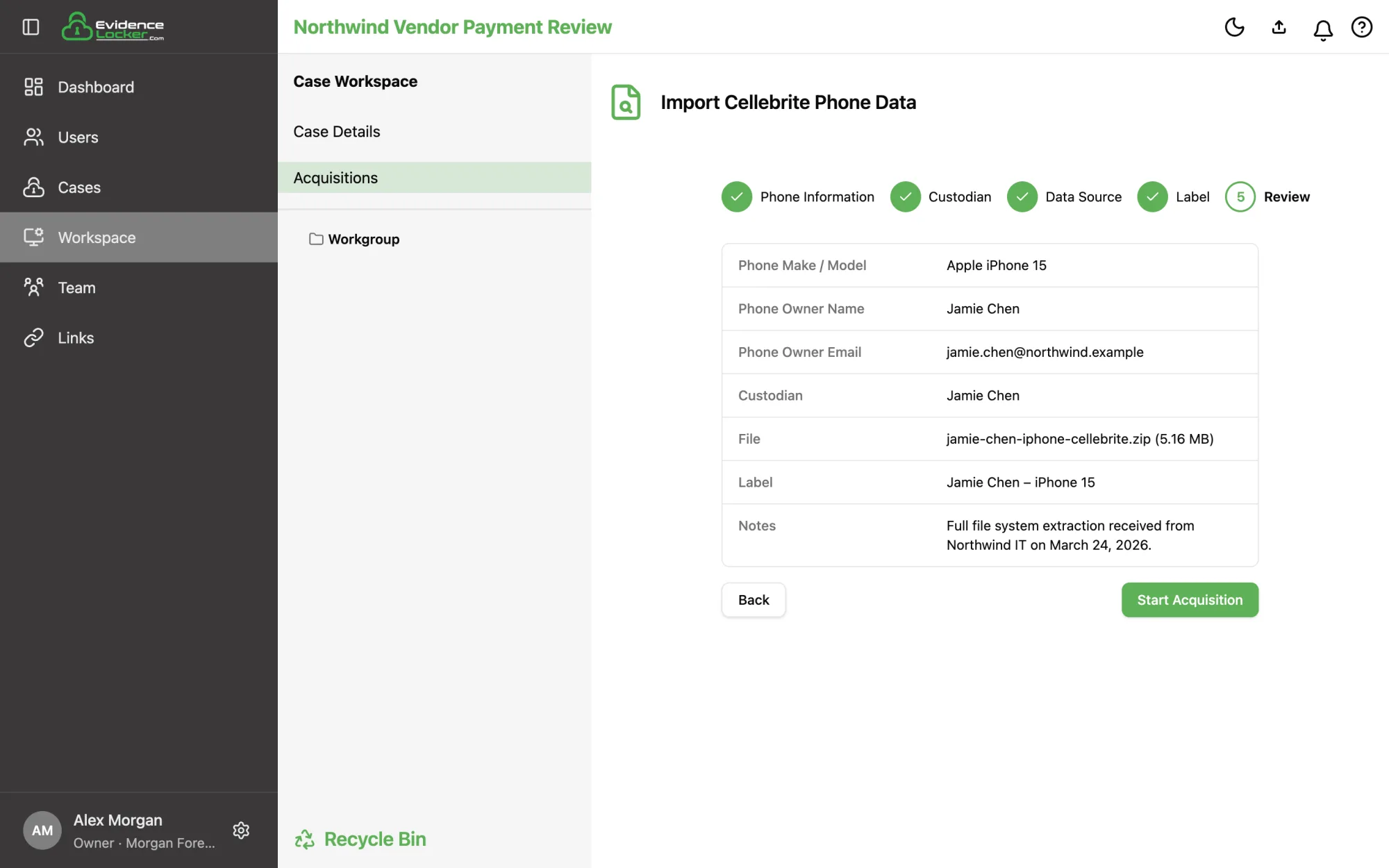 The Review step before starting the acquisition
You're taken straight back to the Acquisitions list while the ZIP uploads in the background (see Uploading Evidence). Once the upload finishes, processing begins.
Step 3 — Watch processing live
Your import appears in the Acquisitions list with its Label, Source Details, Locker Size, Status and Custodian. The status updates on its own — no refresh needed:
- Pending — queued
- Validating — checking the upload
- Processing — a progress bar fills as messages and attachments are parsed and converted
- Completed — ready to review
- Failed — something went wrong; try the import again
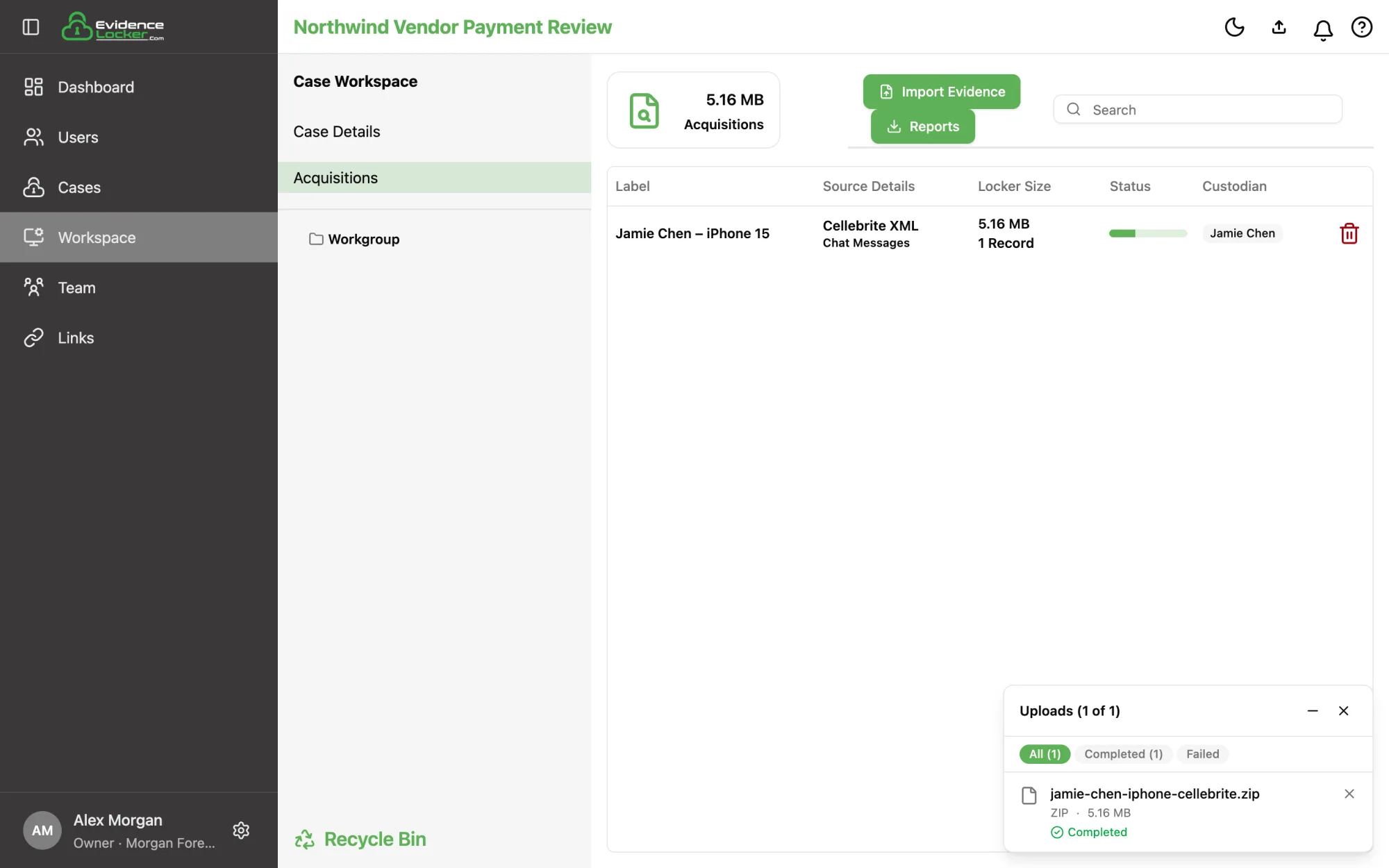 Processing in progress, with the upload panel showing the finished upload
You don't have to watch: we email you when processing starts and again when the acquisition is ready.
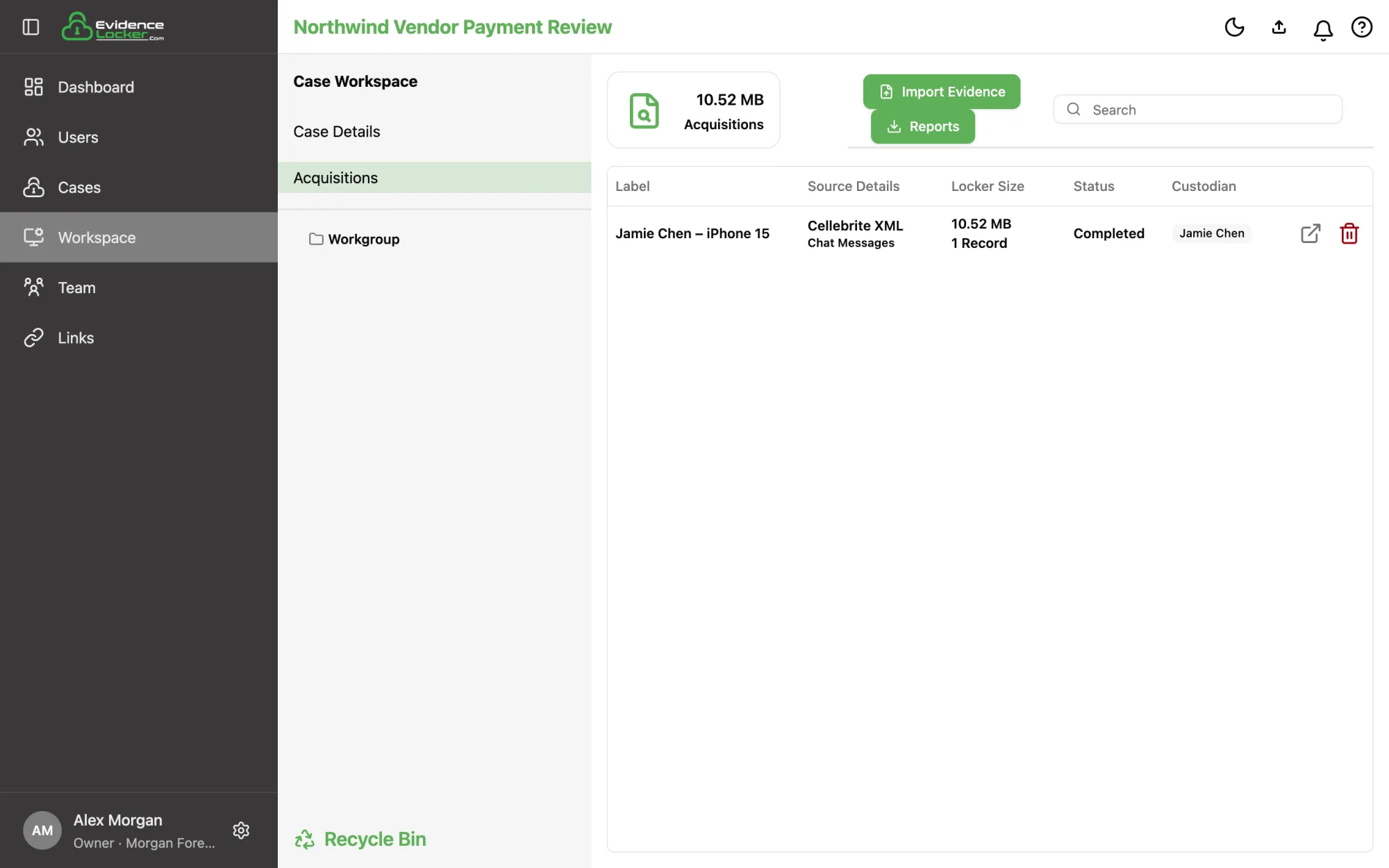 The completed acquisition in the Acquisitions list
Step 4 — Review the evidence
Open a completed import to enter the Examiner. The left rail links to the acquisition's pages — Overview, Chats, Files and People — along with the Export menu, Reports, and the Filters box.
Overview
The Examiner opens on the Overview: headline counts for chats, messages, participants, chat sources and files, then the acquisition's details — evidence ID, custodian, label, the uploaded file, device, phone owner, time zones and the span of chat activity. The Label and Custodian have a pencil for editing.
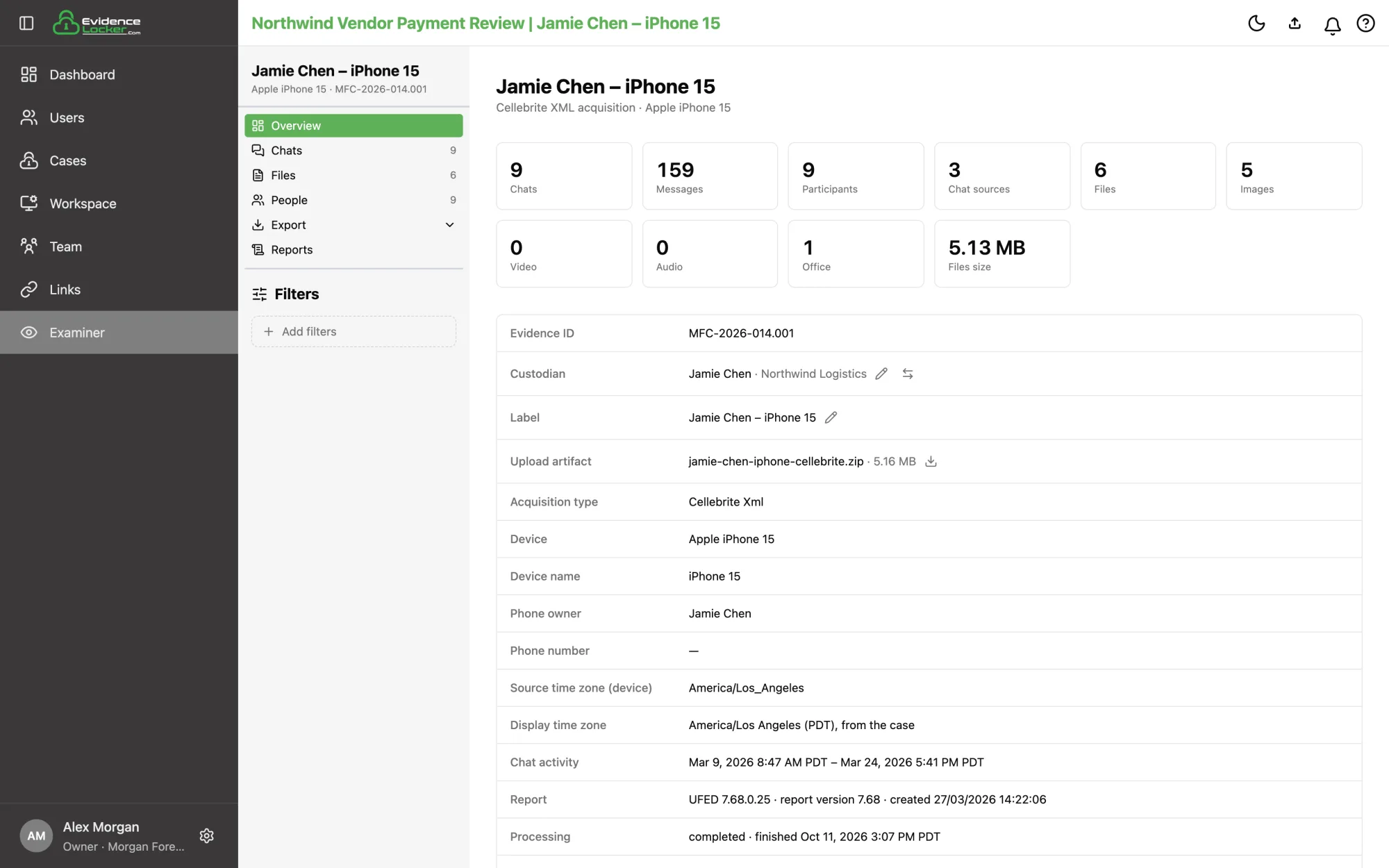 The Overview page with headline counts and acquisition details
Chats and conversations
Chats lists every conversation with its control number, message, participant and attachment counts, start time, last activity and source (for example Native Messages, WhatsApp or Slack). Click a chat to read it in the Chat Messages panel: the device owner's messages appear on the right, and pictures show inline. The panel's tabs are Conversation, Details and Attachments, and you can drag the divider to make the panel wider.
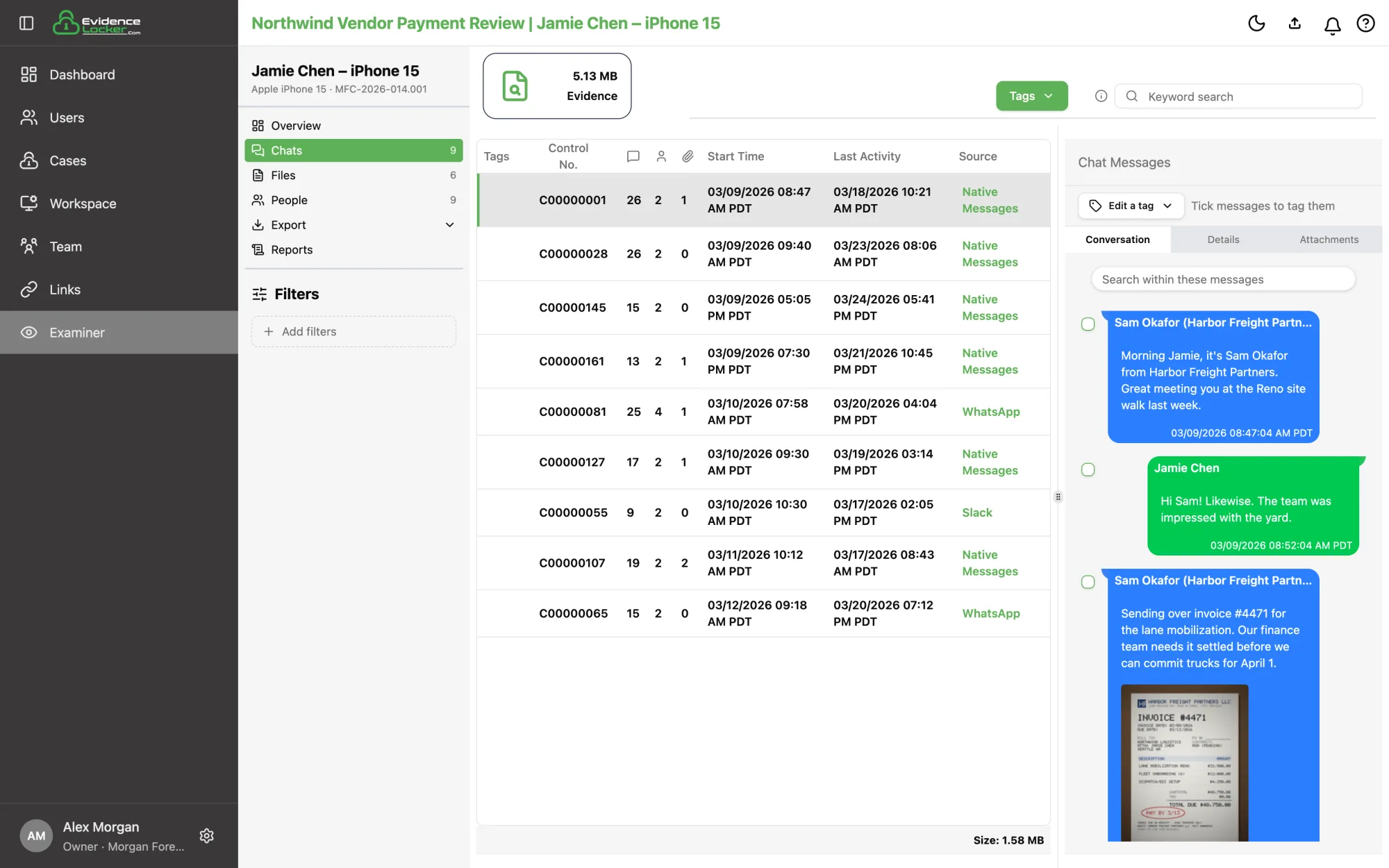 A conversation open beside the chat table, with an inline photo
Keyword search
The Keyword search box searches message text across every chat. The table keeps only the chats with a match and shows how many messages matched, such as 3 of 26; the open conversation shows just the matching messages, with Show all to see the rest.
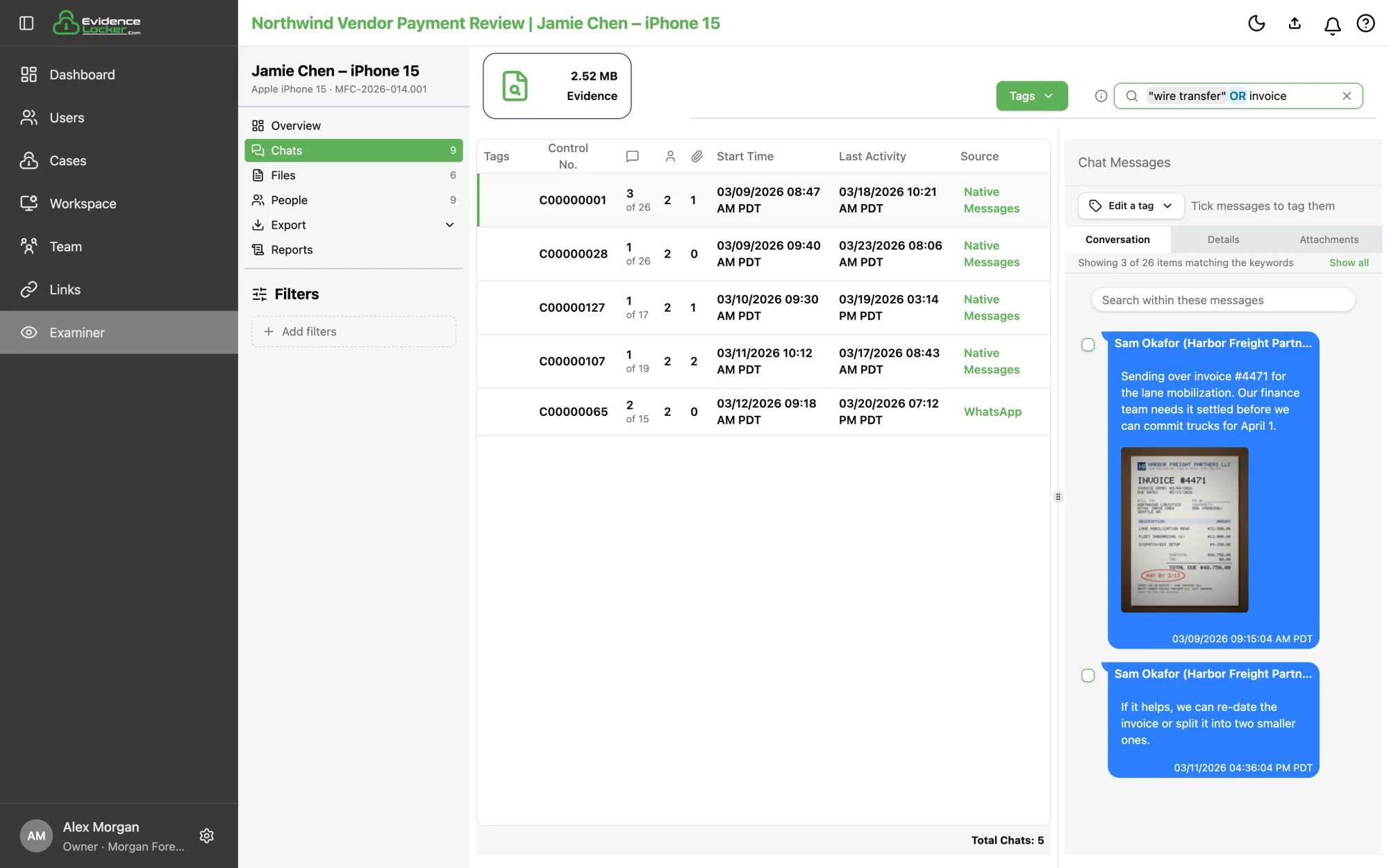 Searching for "wire transfer" OR invoice
Search supports AND, OR, NOT, "exact phrases", and word* for word endings — hover the ⓘ icon beside the box for a reminder.
Filters
Click Add filters to narrow everything by Chat Sources, Tags, Keywords, Participants, Deleted messages, Size, Metadata, Date Sent and Direction. Changes apply when you click Done, and each applied filter shows as a chip in the rail.
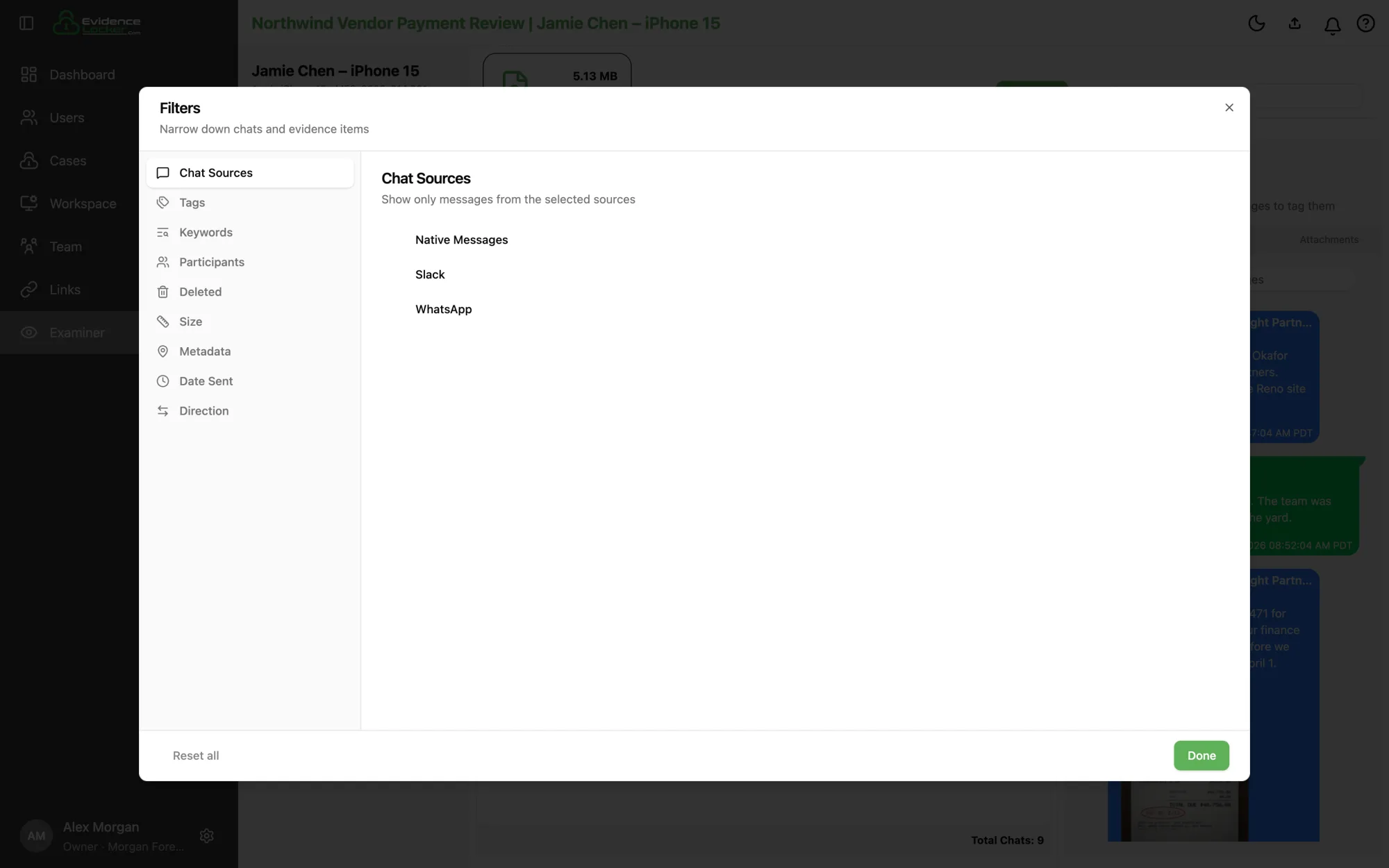 The Filters dialog
Tagging
Open Tags → Manage tags… to create tags with a name and color.
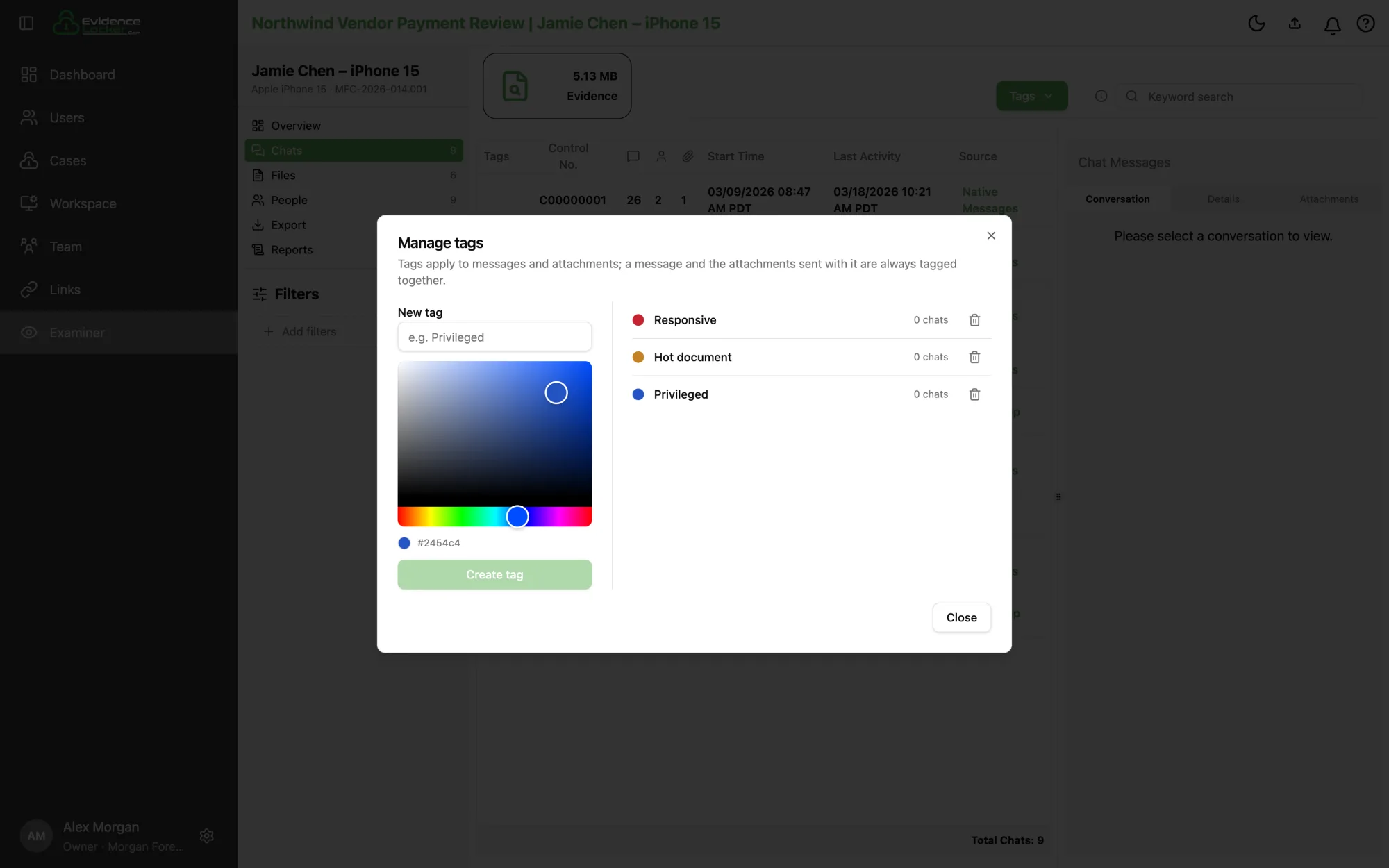 Creating tags in Manage tags
To tag a whole chat, select it in the table and choose a tag from the Tags menu — every message and attachment in it is tagged. To tag individual messages, tick their checkboxes in the conversation and use Apply tag. Tags show as colored badges on messages and as dots in the chat table.
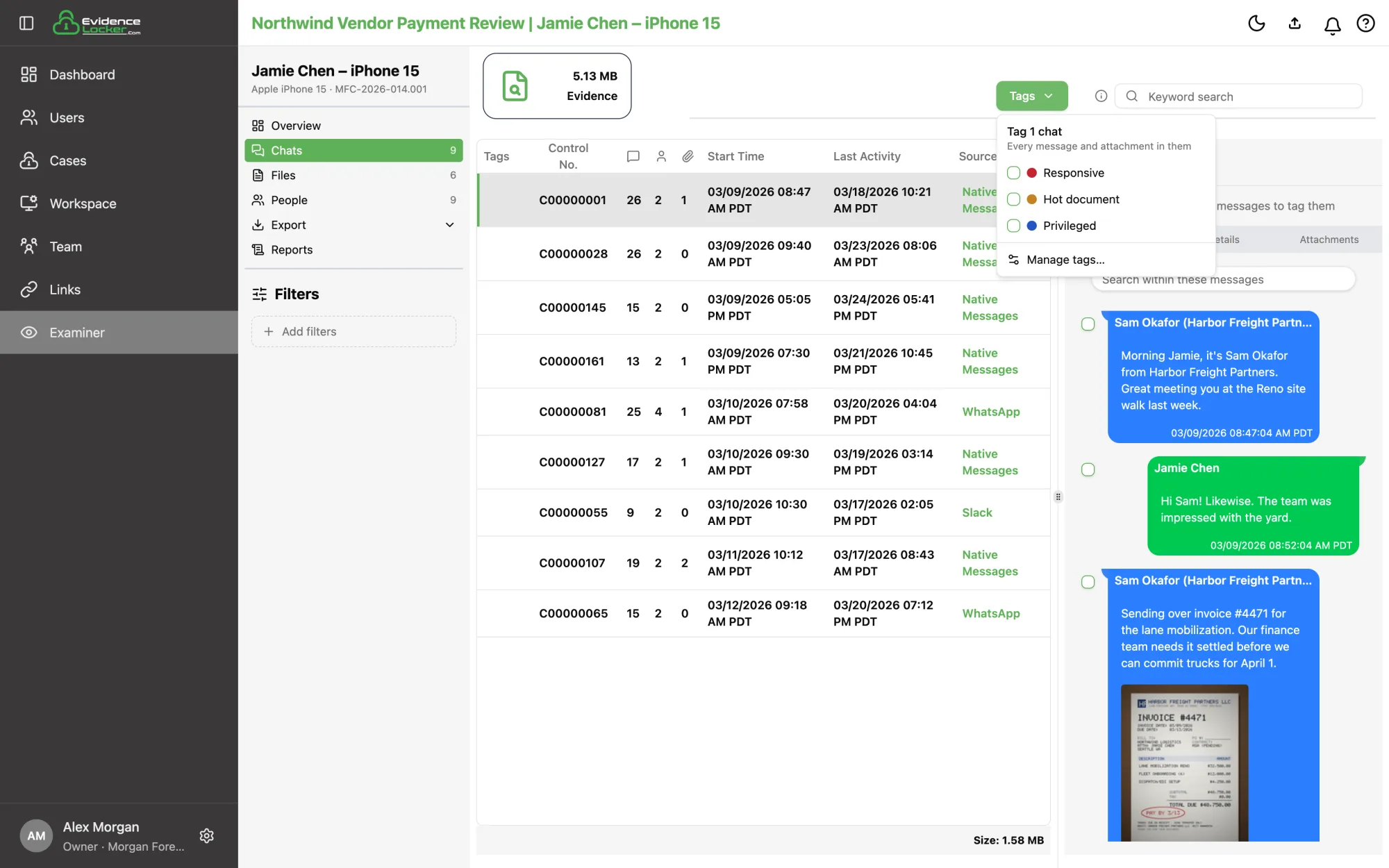 Tagging the selected chat from the Tags menu
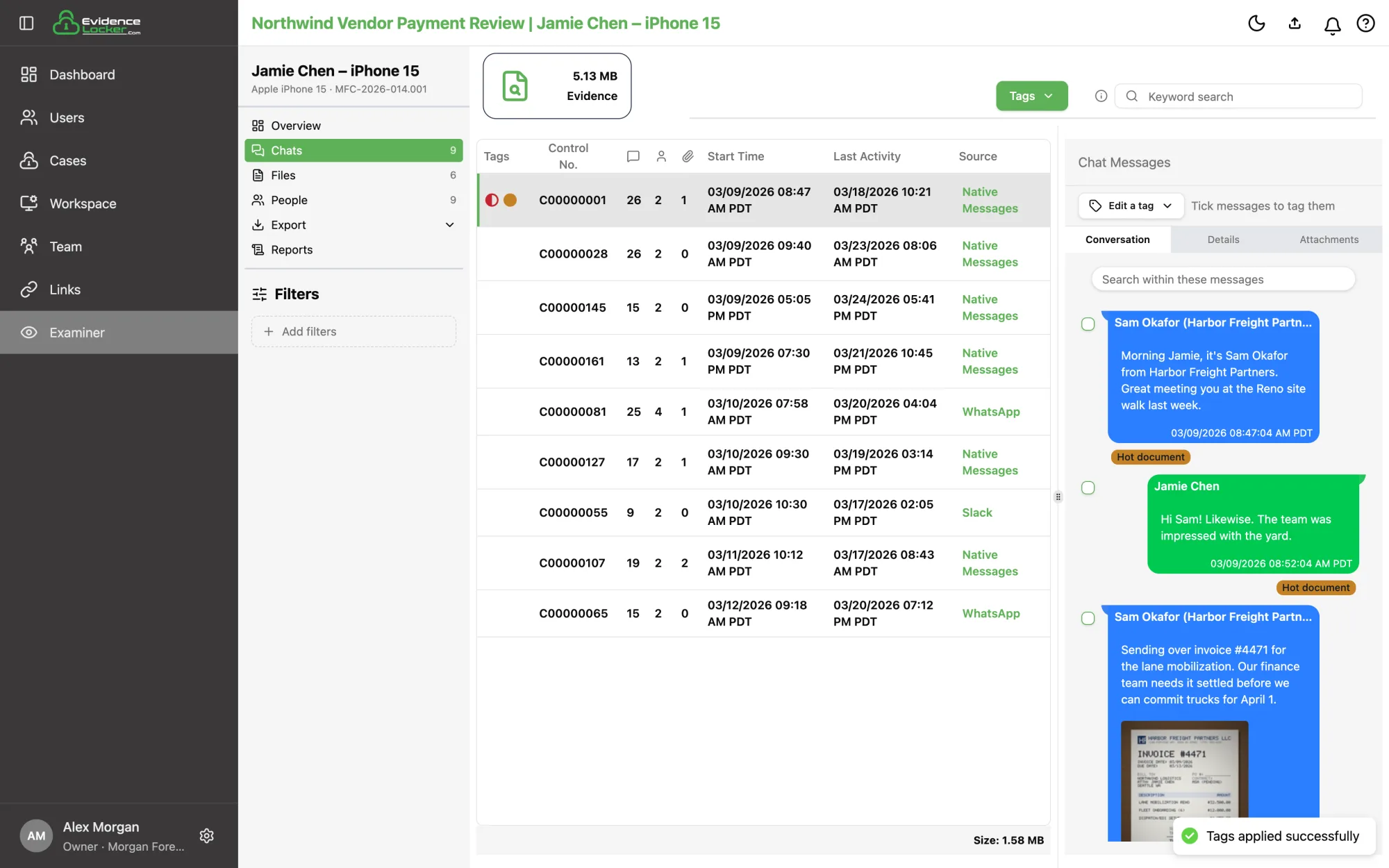 Tagged messages in a conversation, and the tag dots in the chat table
Files
Files shows every file sent in the chats in one grid. Switch between all files, images, video, audio and Office documents, and search by file name or by sender — extracted files often have random names, so searching for a person is usually quicker.
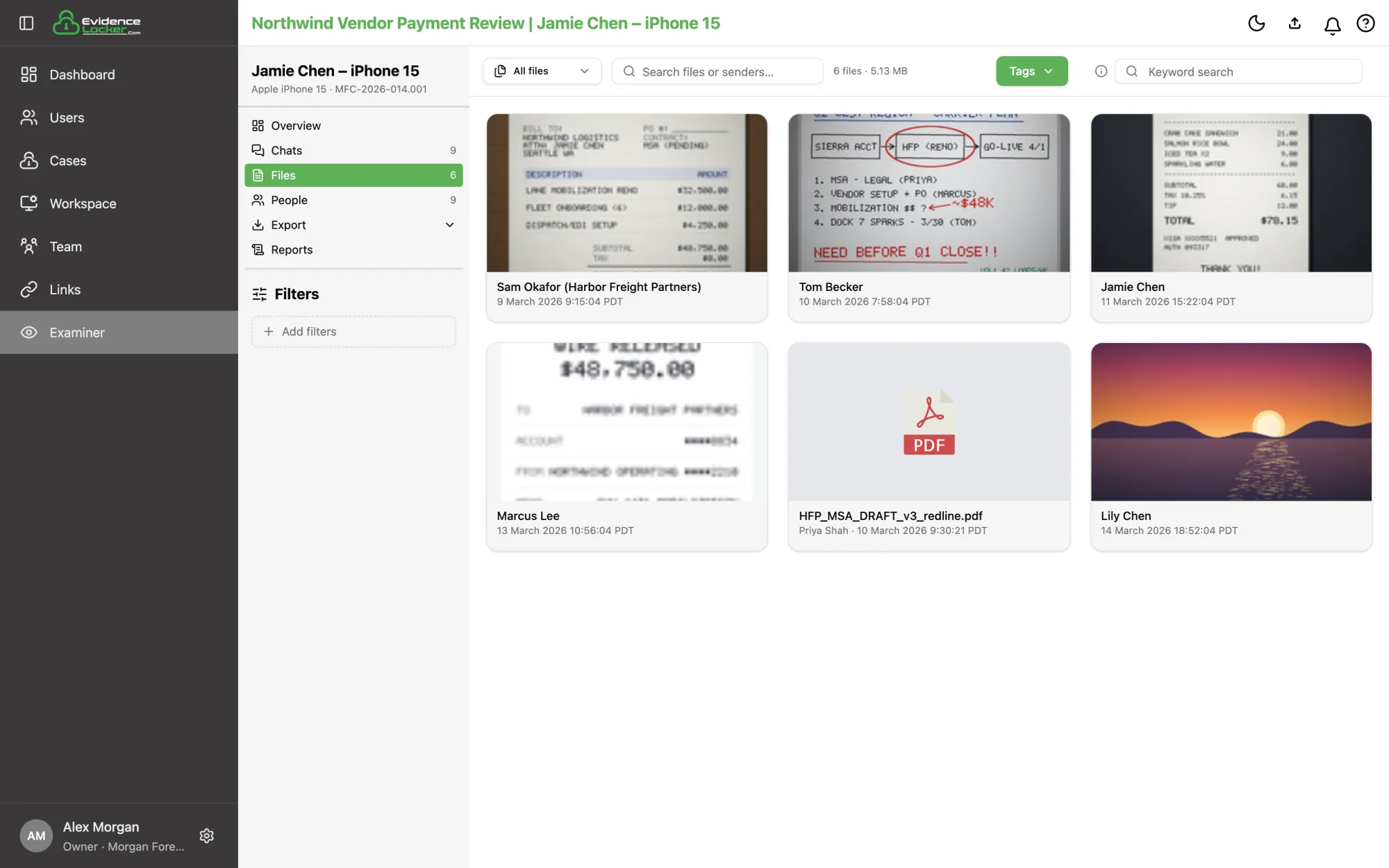 The Files grid with image and document previews
People
People lists everyone in the chats with their sources, and how many chats, messages and attachments each has, plus when they first and last sent a message.
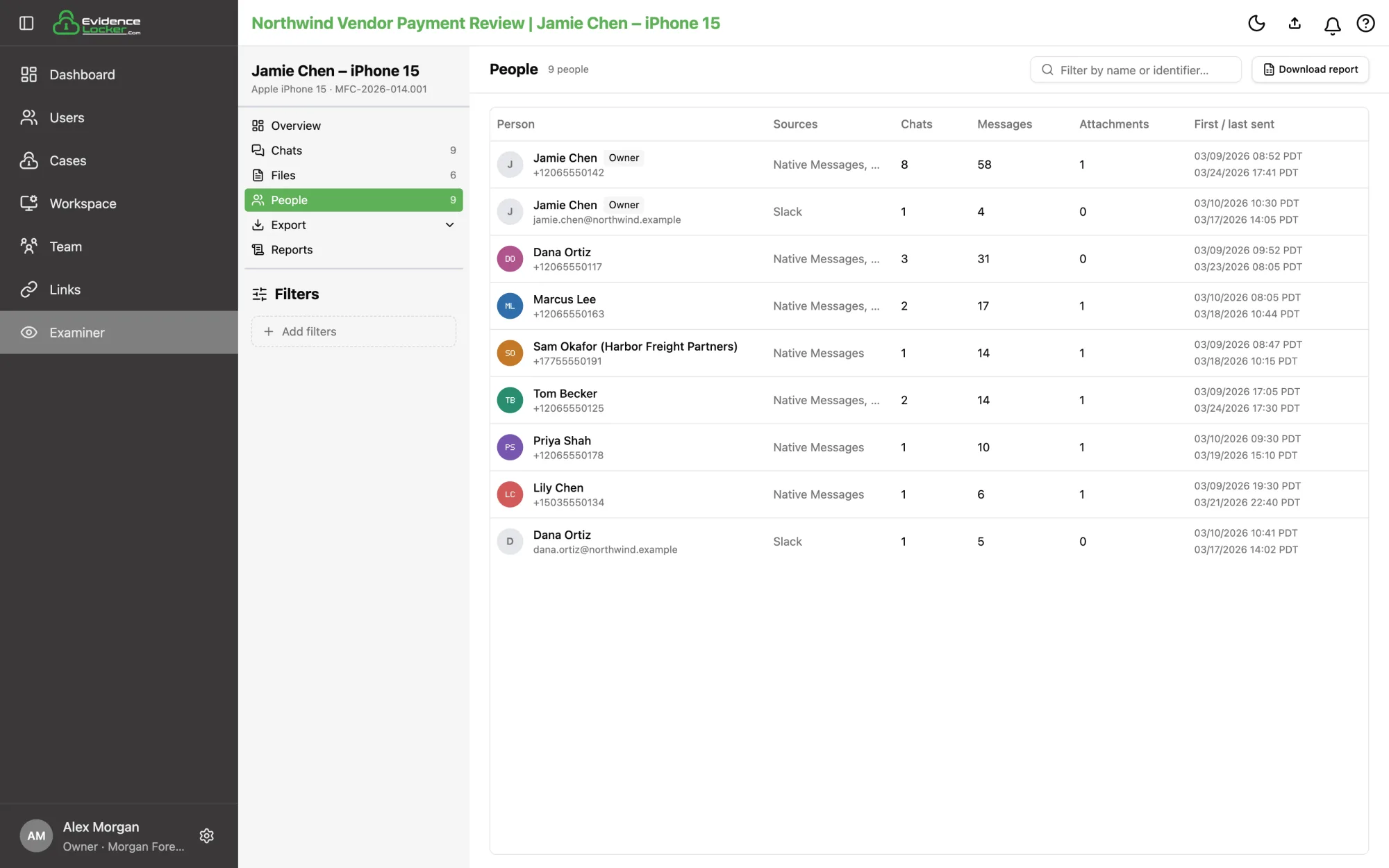 The People page
Exports and downloads
The Export menu in the rail offers RSMF (for loading into a review platform), PDF (for reading), and an Excel People report. Exports honor the filters, search and tags you've applied.
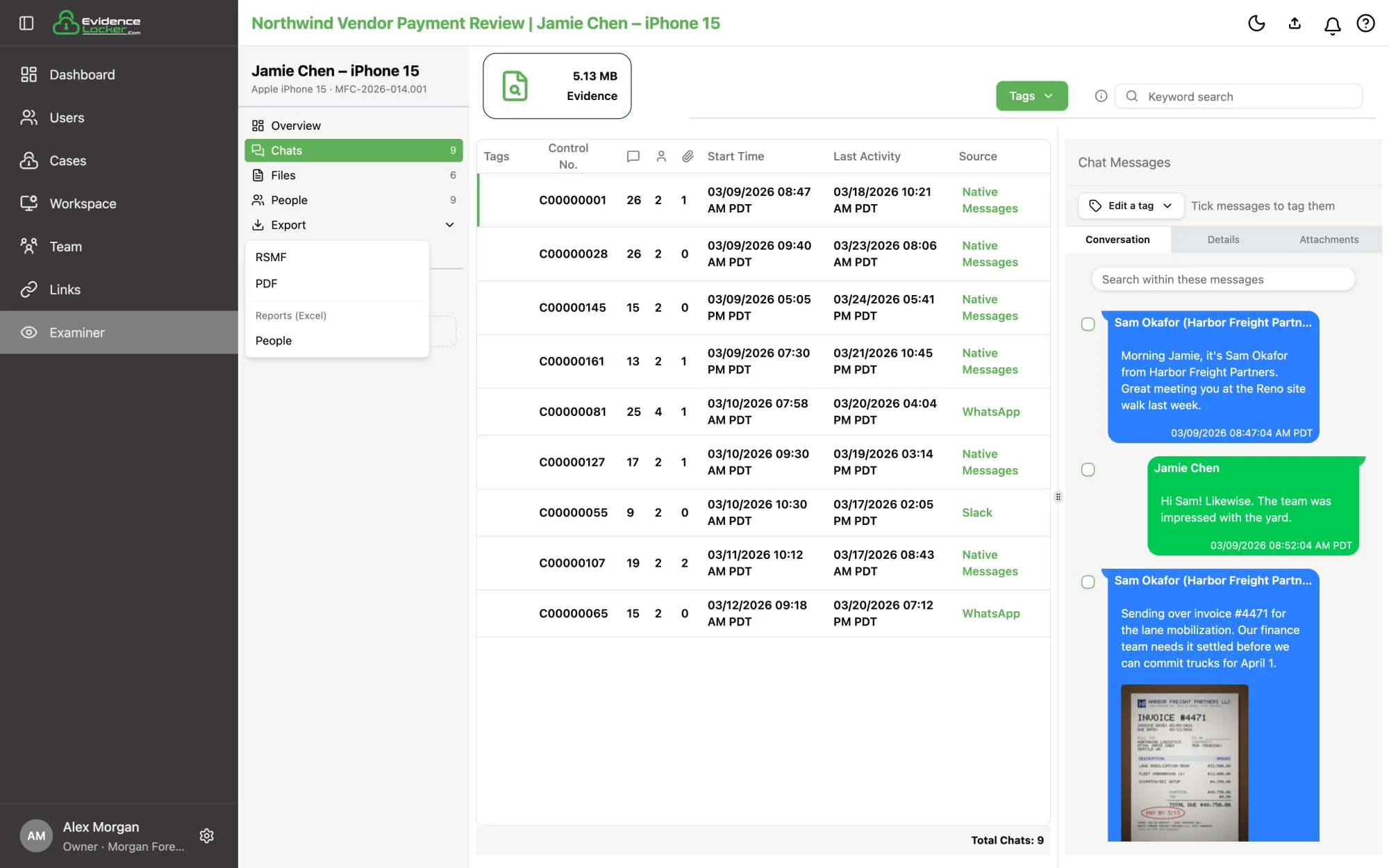 The Export menu
Exports are prepared in the background and we email you when they're ready. They're listed on the acquisition's Reports page, where you can download a ready export directly.
Keyboard shortcuts
Click a message or file first so the list has keyboard focus. On Windows and Linux, use Ctrl where these say ⌘.
| Keys | What they do | Where |
|---|---|---|
| Click, ⌘ + click, Shift + click | Select one item, add or remove one, or select a range | Conversation, Attachments, Files |
| ↑ ↓ | Move the selection to the previous or next message or file | Conversation, Attachments, Files |
| ← → | Move across a row of files | Files |
| Shift + arrow | Extend the selection | Conversation, Attachments, Files |
| ⌘ + arrow | Move the highlight without selecting | Conversation, Attachments, Files |
| Space | Add or remove the highlighted item | Conversation, Attachments, Files |
| Enter | Open the file, or a message's first attachment | Conversation, Attachments, Files |
| ⌘ A | Select everything shown | Conversation, Attachments, Files, tables |
| Esc | Clear the selection | Conversation, Attachments, Files, tables |
| Enter or ↓ | Next search match | Search within these messages box |
| Shift Enter or ↑ | Previous search match | Search within these messages box |
| ← → | Previous or next file | Viewer |
| 1 – 9 | Apply or remove one of the first nine tags | Viewer |
| I | Show or hide file details | Viewer |
| ⌘ = / - / 0 | Zoom in, out, or reset | Viewer (PDFs and images) |
Selecting a message also selects the attachments sent with it. While a tag is picked in Edit a tag, clicks and Space tick messages one at a time and ⌘A and Esc are off. See Keyboard Shortcuts for the full list, including the shortcuts that jump between pages.
Tips
- Large exports take time to parse — you can leave the page and come back; status keeps advancing.
- Custodians are case-scoped: the same person can be a separate custodian in different cases.
- Attachments are converted automatically so images, audio, video and documents preview cleanly in the Examiner.
Related
- Slack Workspace Analysis — the same review tools for Slack workspaces
- Uploading Evidence — how the background upload works
- Creating and Managing Cases — where imports live